WooCommerce Abandoned Cart Email: Complete Setup and Plugin Guide for 2026
WooCommerce has no built-in cart recovery and most advice assumes Shopify. The free Cart Abandonment Recovery plugin gets a three-email flow running in 5 minutes. AutomateWoo ($119/yr) adds Klaviyo-level logic inside WordPress. Or skip plugins and connect your ESP. The catch: caching plugins silently break cart tracking, and guest checkout goes untracked by default — 70-80% of shoppers invisible. Full setup for both paths plus the WooCommerce-specific fixes nobody warns you about.
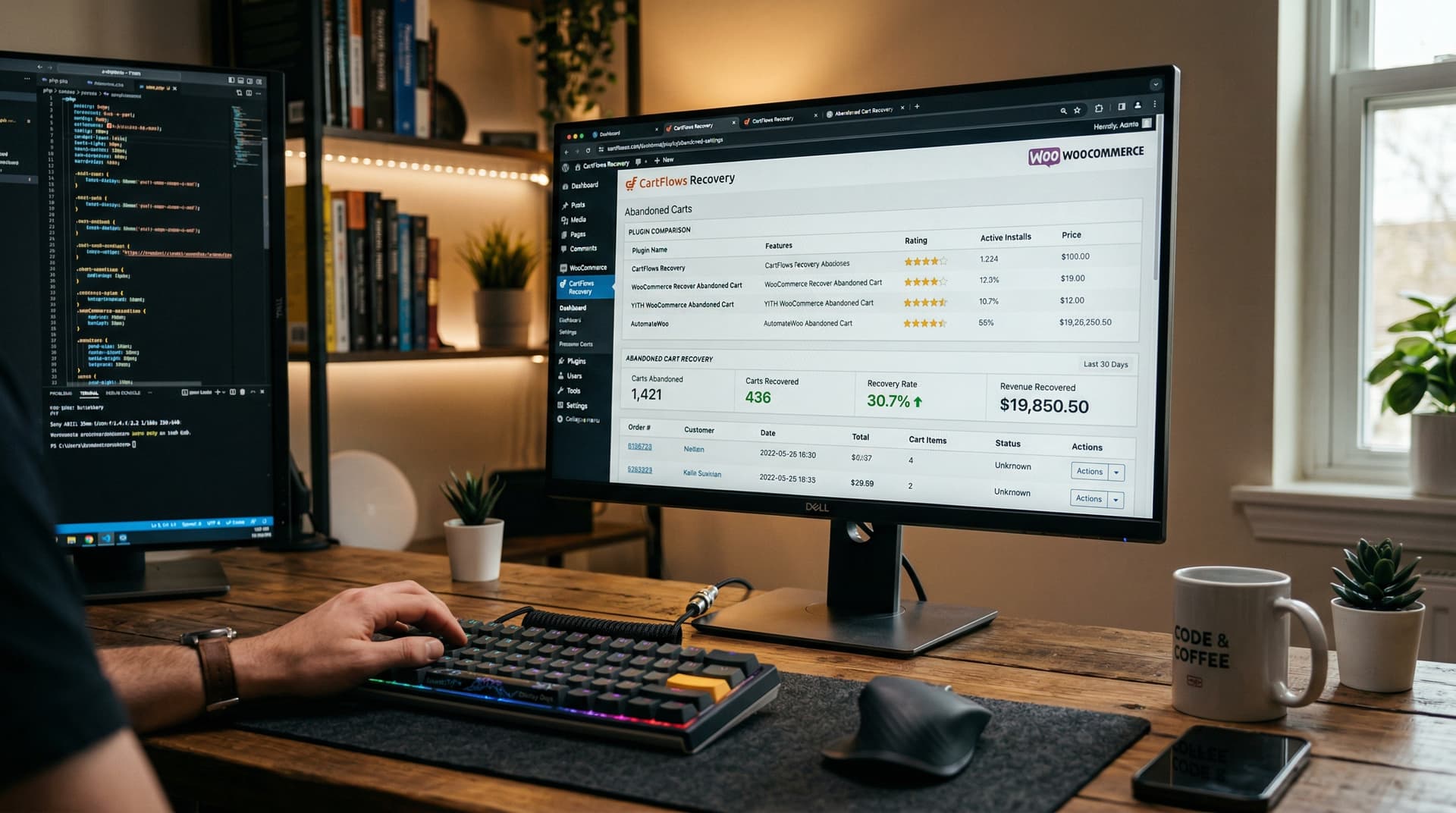
WooCommerce doesn't have built-in cart recovery. You need a plugin or an external ESP. Here's how to pick the right one and set it up properly.
The short version
- WooCommerce has no native abandoned cart email. You need either a plugin or an external ESP (Klaviyo, Omnisend, Mailchimp) to recover abandoned carts.
- The best free option is Cart Abandonment Recovery for WooCommerce (by CartFlows). Setup takes 5 minutes. It handles guest checkout tracking and multi-email sequences out of the box.
- The best premium option is AutomateWoo ($119/year). Full workflow automation with triggers, conditions, and actions. Steeper learning curve but far more powerful.
- If you're already using Klaviyo or Omnisend for email, connect them to WooCommerce instead of using a plugin. The ESP handles the automation better.
- The biggest WooCommerce-specific headache: caching plugins breaking cart tracking. If your abandoned cart emails aren't firing, a caching conflict is probably the cause.
- Guest checkout tracking is the gap most stores miss. According to Baymard Institute (2024), 70-80% of online shoppers check out as guests. If you only track logged-in users, you're missing the vast majority of your abandoners.
According to BuiltWith (2025), WooCommerce powers about 36% of all ecommerce sites globally. It's the most popular ecommerce platform by install count. And yet the abandoned cart email advice online is overwhelmingly written for Shopify + Klaviyo. If you're on WooCommerce, you've probably noticed that most guides assume you have Klaviyo's pre-built flow templates and Shopify's event data. You don't.
WooCommerce is more flexible than Shopify -- you can customize almost anything -- but that flexibility means more decisions and more potential for things to break. There's no built-in abandoned cart email. There's no default flow to switch on. You have to build it yourself, using either a WordPress plugin or an external email platform.
This guide covers both approaches, compares the main plugin options, walks through setup for the best free and premium choices, and addresses the WooCommerce-specific issues (caching, guest tracking, plugin conflicts) that don't exist on Shopify.
WooCommerce does not include built-in abandoned cart email recovery. Store owners need either a plugin (Cart Abandonment Recovery, AutomateWoo, Retainful) or an external ESP integration (Klaviyo, Omnisend, Mailchimp) to capture abandoned carts and trigger recovery emails.
If you're on Shopify + Klaviyo, our Klaviyo setup guide is what you need. If you're using Mailchimp with WooCommerce specifically, we have a dedicated guide for that - coming soon.
This post is part of our Abandoned Cart Email Ultimate Guide series.
WooCommerce vs. Shopify for abandoned cart recovery
Before we get into plugins, here's how WooCommerce compares to Shopify for cart recovery:
| Capability | Shopify | WooCommerce |
|---|---|---|
| Built-in abandoned cart email | Yes (basic, single email) | No |
| Cart event tracking | Native, automatic | Requires plugin or ESP integration |
| Guest checkout email capture | Automatic at checkout | Plugin-dependent |
| Pre-built flow templates | Available in Klaviyo, Shopify Email | Available in AutomateWoo, Retainful |
| Multi-email sequences | Via Klaviyo or Shopify Email | Via plugin or ESP |
| Conditional logic (splits by cart value, customer type) | Via Klaviyo | Via AutomateWoo or ESP |
| SMS integration | Via Klaviyo, Postscript | Via ESP integration (not native) |
Shopify has an easier starting point. WooCommerce has more flexibility once you set it up. The performance ceiling is the same -- both can run sophisticated multi-email sequences with conditional logic. WooCommerce just takes more work to get there.
Option A: WooCommerce abandoned cart plugins
The top plugins compared
| Plugin | Price | Emails | Guest tracking | Conditional logic | Coupons | Best for |
|---|---|---|---|---|---|---|
| Cart Abandonment Recovery (CartFlows) | Free | Multi-email sequences | Yes | Basic | Yes, unique per user | Getting started fast, zero budget |
| Abandoned Cart Lite | Free | Multi-email sequences | Yes (from checkout) | No | Yes | Simple setups, small stores |
| AutomateWoo | $119/year | Unlimited workflows | Yes | Full (triggers, rules, actions) | Yes, auto-generated | Stores wanting Klaviyo-level automation without Klaviyo |
| Retainful | Free-$79/mo (SaaS) | Multi-email + popups | Yes | Moderate | Yes | Stores wanting email marketing + cart recovery in one tool |
| YITH Recover Abandoned Cart | $89.99/year | Multi-email | Yes | Basic | Yes | YITH ecosystem stores |
| WooCommerce Recover Abandoned Cart | Free | Multi-email | Yes | No | Yes | Budget-conscious, no premium needed |
My recommendation
If you're just starting: Cart Abandonment Recovery (CartFlows). It's free, takes 5 minutes to set up, tracks guest checkouts, and supports multi-email sequences with unique coupon codes. You can run a proper three-email cart recovery flow without spending anything.
If you need more power: AutomateWoo. $119/year gets you full workflow automation with triggers, conditions, and actions comparable to Klaviyo's flow builder. The learning curve is steeper, but it's the closest thing to a proper email automation platform that runs natively in WordPress.
If you're already paying for an ESP: Skip the plugins entirely and use your ESP's WooCommerce integration. More on that in Option B below.
Setting up Cart Abandonment Recovery (free plugin)
This is the fastest path from zero to a working abandoned cart flow on WooCommerce.
Step 1: Install and activate
WordPress admin > Plugins > Add New > search "Cart Abandonment Recovery" > Install > Activate.
The plugin is by CartFlows (now FunnelKit). It has 400,000+ active installations and works with any WooCommerce theme.
Step 2: Configure settings
Go to WooCommerce > Cart Abandonment. The settings page has three main sections:
Cart abandonment cut-off time. This is how long the plugin waits before marking a cart as abandoned. Default is usually 15-30 minutes. Set it to 30 minutes. Anything shorter catches people who are still actively browsing.
Delete recovered carts after. How long to keep recovered cart data. 30 days is fine.
Enable GDPR notice. If you sell to EU customers, turn this on. It adds consent language to the checkout page.
Step 3: Set up your email sequence
Go to the "Follow-Up Emails" tab. Create three emails:
Email 1 -- 30 minutes after abandonment:
- Subject: "[Name], you left something in your cart"
- Body: Cart contents (the plugin inserts these dynamically using shortcodes like
{{cart.product.table}}and{{cart.checkout_url}}) - CTA: "Complete your order"
- No coupon
Email 2 -- 24 hours after abandonment:
- Subject: "Your cart is waiting -- here's why customers love [Product]"
- Body: Cart contents + manually added social proof (reviews, star ratings)
- CTA: "Return to your cart"
- No coupon yet
Email 3 -- 48 hours after abandonment:
- Subject: "Here's 10% off your cart -- expires tomorrow"
- Body: Cart contents + unique coupon code (the plugin generates one per user using the
{{cart.coupon_code}}shortcode) - CTA: "Claim your discount"
- Set coupon to expire in 24-48 hours
The plugin's email editor is basic -- HTML and shortcodes, not a visual drag-and-drop builder. If you need prettier emails, you can write the HTML yourself or use a tool like Stripo to design the template and paste the HTML in.
Step 4: Enable guest checkout tracking
This is the step most WooCommerce stores miss. By default, WooCommerce only tracks carts for logged-in users. Guest visitors (the majority of your traffic) add to cart, reach checkout, enter their email address, and if they leave, you have no way to follow up.
Cart Abandonment Recovery captures the guest's email address from the checkout form as soon as they type it -- before they hit "Place order." This is the plugin's most valuable feature. Without it, you're only recovering carts from the small fraction of visitors who have accounts.
The guest tracking triggers when the email field on the checkout page loses focus (the customer clicks or tabs to the next field after typing their email). This happens automatically. No additional configuration needed beyond activating the plugin.
Step 5: Test the flow
Add a product to cart on your own store. Enter an email address at checkout. Close the tab without completing the purchase. Wait 30 minutes. Check the email.
If the email doesn't arrive, check: (1) your email sending is working (WooCommerce > Status > check email log), (2) no caching plugin is interfering (see troubleshooting section below), (3) the email template is active and not still in draft.
Setting up AutomateWoo (premium plugin)
AutomateWoo is the power option. It's a full marketing automation platform that lives inside WordPress, with abandoned cart as one of many workflow types.
Step 1: Purchase and install
Buy from automatewoo.com or the WooCommerce marketplace ($119/year). Download the plugin zip. WordPress admin > Plugins > Add New > Upload Plugin > activate and enter your license key.
Step 2: Create an abandoned cart workflow
Go to AutomateWoo > Workflows > Add Workflow.
Trigger: "Cart Abandoned." AutomateWoo tracks carts for both logged-in users and guests (it captures email at checkout, similar to the free plugin).
Timing: Add a "Wait" action. Set to 30 minutes for email 1. Create separate workflows for email 2 (24 hours) and email 3 (48-72 hours), or use a single workflow with sequential wait periods.
Rules (conditional logic): This is where AutomateWoo earns its price. You can add rules that filter who receives the email:
- Cart total greater than $50 (different email for high vs. low AOV)
- Customer is a returning buyer vs. first-time visitor
- Cart contains a specific product or category
- Customer is in a specific geographic region
Actions: "Send Email." Use AutomateWoo's email editor to build the template. It supports dynamic variables: {{ cart.items }}, {{ customer.first_name }}, {{ cart.total }}, and more. You can also create unique coupon codes dynamically within the workflow.
Step 3: Build a three-email sequence
Workflow 1: Reminder (30 minutes)
- Trigger: Cart Abandoned
- Wait: 30 minutes
- Action: Send email with cart contents, no coupon
Workflow 2: Social proof (24 hours)
- Trigger: Cart Abandoned
- Wait: 24 hours
- Rule: Customer has NOT placed an order since trigger (suppression)
- Action: Send email with cart contents + reviews
Workflow 3: Incentive (48 hours)
- Trigger: Cart Abandoned
- Wait: 48 hours
- Rule: Customer has NOT placed an order since trigger
- Rule: Cart total > $30 (only discount carts worth discounting)
- Action: Generate unique coupon (10% off, expires in 24 hours)
- Action: Send email with cart contents + coupon
The key difference from the free plugin: AutomateWoo's rules engine lets you suppress emails for customers who purchased, vary content by cart value, and segment by customer type. This is the WooCommerce equivalent of Klaviyo's conditional splits.
Step 4: Add SMS (optional)
AutomateWoo supports SMS via the Twilio integration add-on. You can add an SMS action to a workflow the same way you add an email action. Send a text at 15 minutes, then email at 1 hour.
This requires a Twilio account and SMS consent from your customers. See our SMS vs email guide for compliance details.
Option B: Using an external ESP with WooCommerce
If you're already paying for Klaviyo, Omnisend, or Mailchimp, you don't need a WooCommerce plugin for cart recovery. The ESP handles the automation. You just need the integration.
Klaviyo + WooCommerce
Install the Klaviyo for WooCommerce plugin. It syncs customer data, order history, and cart events (Added to Cart, Started Checkout) to Klaviyo. From there, you build abandoned cart flows in Klaviyo's interface exactly like you would for a Shopify store.
Advantages over plugins: better email design tools, more sophisticated conditional logic, unified customer profiles across all channels, A/B testing built into flows.
Disadvantage: Klaviyo costs more than a $119/year plugin. If cart recovery is your only email need, the plugin approach is more cost-effective.
Omnisend + WooCommerce
Install the Omnisend for WooCommerce plugin. Similar to Klaviyo -- it syncs events and customer data. Omnisend has strong cookie-based cart tracking that catches more anonymous visitors than some alternatives. Built-in email + SMS + push in a single automation.
Omnisend is often the recommendation for WooCommerce stores that want a full email platform but find Klaviyo too complex or too expensive. The WooCommerce integration is well-maintained and the pre-built automation templates work well.
Mailchimp + WooCommerce
Covered in depth in our Mailchimp + WooCommerce guide - coming soon. The short version: install "Mailchimp for WooCommerce" plugin, sync your store data, build an abandoned cart automation in Mailchimp's Customer Journey Builder. Functional but more limited than Klaviyo or Omnisend for conditional logic.
WooCommerce-specific issues and fixes
WooCommerce has problems that Shopify doesn't. Here are the ones that affect abandoned cart recovery:
Caching plugins breaking cart tracking
This is the #1 issue WooCommerce stores face with abandoned cart emails. Caching plugins (WP Super Cache, W3 Total Cache, WP Rocket, WP Fastest Cache, LiteSpeed Cache) serve static versions of your pages to speed up your site. But cart and checkout pages are dynamic -- they use cookies and PHP sessions that change per user. If your caching plugin serves a cached version of the checkout page, the cart abandonment plugin can't track the session.
The fix: Exclude these pages from caching: /cart/, /checkout/, /my-account/, and any page using WooCommerce shortcodes. Most caching plugins have a settings page where you can add URL exclusions. WP Rocket does this automatically for WooCommerce pages, but not all caching plugins do.
If you're using server-level caching (Varnish, Nginx FastCGI, Cloudflare APO, LiteSpeed at the server level), you'll need to ask your hosting provider to exclude WooCommerce pages. This is the most commonly missed step because it's not visible in your WordPress admin -- it happens at the server layer.
How to test: Open your site in an incognito window. Add a product to cart. Navigate to checkout. Enter an email address. Close the tab. Wait for the abandonment timer. If the email doesn't arrive but the plugin shows no abandoned carts in its dashboard, caching is almost certainly the problem.
Guest checkout tracking gaps
WooCommerce doesn't track guest carts by default. The abandoned cart plugin needs to capture the guest's email address from the checkout form. This capture happens via JavaScript -- when the customer types their email and moves to the next field, the plugin records it.
Problems that prevent this:
- JavaScript errors from other plugins blocking the capture script. Check your browser console for errors on the checkout page.
- Customized checkout forms (via Checkout Field Editor or similar plugins) that change the email field's ID or position. The cart abandonment plugin looks for a specific field ID. If it's been changed, the capture breaks.
- Ajax-heavy checkout plugins (like Fluid Checkout or CheckoutWC) that replace WooCommerce's default checkout with a custom interface. These may not be compatible with all cart abandonment plugins. Test specifically with your checkout plugin.
The fix: After installing any abandoned cart plugin, test guest checkout tracking on every browser and device you care about. Add to cart. Enter an email. Abandon. Verify the cart appears in the plugin's dashboard and the email fires.
Plugin conflicts
According to WP Engine (2025), the average WooCommerce store runs 20-30 active plugins. Conflicts are inevitable. The most common conflicts with cart abandonment plugins:
- Other email plugins (WooCommerce Follow-Ups, YITH WooCommerce Email Customizer) that intercept the same email hooks
- Checkout optimization plugins that modify the checkout page structure
- Security plugins (Wordfence, Sucuri) that aggressively block JavaScript execution or cookie setting
The fix: If your cart abandonment emails stop working after installing a new plugin, deactivate the new plugin and test. If they work again, you've found the conflict. Either find an alternative plugin or contact both plugin developers for compatibility guidance.
WooCommerce email deliverability
WooCommerce sends emails through your WordPress hosting server by default. This is terrible for deliverability. Shared hosting IP addresses are often blacklisted because other sites on the same server send spam.
The fix: Use a dedicated email sending service. WP Mail SMTP is the most common plugin for this. Connect it to SendGrid, Amazon SES, Mailgun, or your ESP's SMTP. This routes your abandoned cart emails through a reputable sender with proper authentication (SPF, DKIM, DMARC), dramatically improving inbox placement.
If you're using an external ESP (Klaviyo, Omnisend, Mailchimp), this isn't an issue -- the ESP handles sending through its own infrastructure.
WooCommerce abandoned cart email vs. Shopify: feature comparison
| Feature | WooCommerce (AutomateWoo) | WooCommerce (Free plugin) | Shopify + Klaviyo |
|---|---|---|---|
| Setup time | 30-60 minutes | 5-15 minutes | 15-30 minutes |
| Multi-email sequences | Yes | Yes | Yes |
| Conditional splits | Yes (rules engine) | No | Yes (flow builder) |
| Guest tracking | Yes | Yes | Automatic |
| A/B testing | Manual | No | Built-in |
| SMS integration | Via Twilio add-on | No | Native |
| Dynamic product blocks | Yes (variables) | Yes (shortcodes) | Yes (event blocks) |
| Email design quality | Basic editor | Basic HTML | Visual drag-and-drop |
| Browse abandonment | Possible with custom trigger | No | Yes (native trigger) |
| Annual cost | $119 | Free | $45-100/mo |
WooCommerce with AutomateWoo approaches Klaviyo's functionality at a fraction of the cost. The trade-off is a less polished interface and more manual configuration. For stores that prioritize control and cost, it's a strong choice. For stores that prioritize ease of use and design quality, the ESP route is better.
Performance benchmarks for WooCommerce cart recovery
Does WooCommerce have abandoned cart emails?
No. Unlike Shopify, WooCommerce has no native cart recovery feature. There is no built-in abandoned cart email to switch on. You need a third-party plugin like Cart Abandonment Recovery or AutomateWoo, or an external ESP integration through Klaviyo, Omnisend, or Mailchimp to capture abandoned carts and send recovery emails.
What is the best WooCommerce abandoned cart plugin?
The top three options are Cart Abandonment Recovery by CartFlows (free, fast setup, handles guest tracking and multi-email sequences), AutomateWoo ($119/year, full conditional logic and workflow automation comparable to Klaviyo), and Retainful (freemium SaaS with built-in popups and email marketing). CartFlows is best for getting started; AutomateWoo is best for stores that need segmentation without an external ESP.
WooCommerce-specific benchmark data is harder to find than Shopify/Klaviyo data because the ecosystem is more fragmented. But here's what we can piece together from plugin reports and ESP data:
| Metric | WooCommerce (plugin) | WooCommerce (ESP integration) | Shopify + Klaviyo |
|---|---|---|---|
| Cart recovery rate | 3-8% | 5-12% | 5-15% |
| Open rate | 40-50% | 40-50% | 40-50% |
| Click-to-conversion | 5-10% | 8-15% | 8-15% |
| Revenue per recipient | $1-3 | $2-5 | $3.65 avg |
The gap between plugin-based and ESP-based recovery on WooCommerce comes down to three things: email design quality (ESPs have better builders), conditional logic (ESPs can segment more precisely), and deliverability (ESPs send through dedicated infrastructure; plugins use your WordPress server by default).
If you're using a plugin and your recovery rate is below 3%, check deliverability first. Install WP Mail SMTP, connect a proper sending service, and test that emails land in the inbox rather than spam. This single change can double your recovery rate because the emails were always being sent -- they just weren't being received.
What "good" looks like on WooCommerce
A WooCommerce store running a three-email sequence through AutomateWoo or an ESP integration, with guest checkout tracking enabled, proper caching exclusions, and emails routed through a dedicated sending service should expect:
- 5-10% cart recovery rate
- $2-5 RPR
- 40-50% open rates
- Revenue contribution of 10-20% of total email revenue
If you're above those ranges, you're doing well. If you're significantly below, the troubleshooting section above covers the most common causes.
Migrating from a plugin to an ESP (or vice versa)
Stores often start with a free plugin and outgrow it. Here's how to migrate without losing cart recovery during the transition:
Step 1: Set up the new system (ESP flow or new plugin) but keep it in draft/manual mode. Build your three-email sequence, configure timing, set up suppression logic.
Step 2: Test the new system by triggering a test abandoned cart. Verify the emails send correctly, product data populates, links work, and timing is right.
Step 3: On a quiet day (Tuesday or Wednesday, not a weekend or sale period), disable the old system and activate the new one simultaneously. Don't run both at once -- you'll send duplicate emails.
Step 4: Monitor for 48-72 hours. Check that abandoned carts are being tracked, emails are sending on schedule, and no duplicates are going out.
Step 5: After one week, compare the new system's recovery rate against the old one. The new system should match or exceed the old one within 2-3 weeks once it has enough data.
The most common migration mistake: forgetting to disable the old plugin after enabling the ESP flow. Always check that only one system is active.
Geysera works with WooCommerce stores -- we connect to your ESP and build cart abandonment flows measured by incremental revenue. See how it works →
Frequently asked questions
Does WooCommerce have built-in abandoned cart emails?
No. WooCommerce doesn't include any cart recovery automation out of the box. You need either a plugin (Cart Abandonment Recovery, AutomateWoo, Retainful) or an external ESP (Klaviyo, Omnisend, Mailchimp) with a WooCommerce integration.
What's the best free WooCommerce abandoned cart plugin?
Cart Abandonment Recovery by CartFlows/FunnelKit. 400,000+ installations, guest checkout tracking, multi-email sequences, unique coupon codes. Setup takes 5 minutes.
Is AutomateWoo worth $119/year?
If you need conditional logic (different emails by cart value, customer type, or product category), yes. If you just need a basic three-email sequence, the free plugin is sufficient. AutomateWoo pays for itself if it recovers one or two additional carts per month that the free plugin wouldn't have caught.
Should I use a plugin or an external ESP?
If email marketing is only for cart recovery and you don't send campaigns or newsletters, a plugin is cheaper and simpler. If you're doing email marketing beyond cart recovery (campaigns, welcome series, post-purchase flows), use an ESP. Running both a plugin and an ESP for different email types creates data silos and potential conflicts.
Why aren't my abandoned cart emails sending?
Three most common causes: (1) Caching plugin is serving static versions of checkout pages, preventing cart tracking. Exclude WooCommerce pages from cache. (2) Email delivery is using WordPress default sending, which has poor deliverability. Install WP Mail SMTP and connect a sending service. (3) The plugin is tracking carts but in draft status -- activate the email templates.
How do I track guest abandoned carts in WooCommerce?
Both the free Cart Abandonment Recovery plugin and AutomateWoo capture the guest's email from the checkout form via JavaScript. The email is recorded when the customer types it and moves to the next field. Make sure no JavaScript errors on the checkout page are blocking this script, and test it after any plugin or theme update.
Back to the pillar: Abandoned Cart Email: The Ultimate Guide
Next in the series: Mailchimp Abandoned Cart Email for WooCommerce: Setup and Plugin Guide - coming soon
This guide is the hub of a 13-part series on abandoned cart email. Each spoke post goes deeper on a specific topic:
- Abandoned Cart Email: The Ultimate Guide to Recovering Lost Revenue in 2026
- Abandoned Cart Email Subject Lines That Actually Get Opened
- Cart Abandonment Rate by Industry: 2026 Benchmarks
- 40+ Abandoned Cart Email Examples from Top DTC Brands
- Abandoned Cart Email vs. SMS: Which Recovers More Revenue?
- Why Customers Abandon Carts (And How to Fix Each Reason)
- Abandoned Cart Email Discounts: When to Offer and When to Hold Back
- How to Set Up Abandoned Cart Emails in Klaviyo + Shopify
- Abandoned Cart Email Design: Templates, Layout, and CTA Best Practices
- Browse Abandonment vs. Cart Abandonment: The Complete Recovery Playbook
- WooCommerce Abandoned Cart Email: Complete Setup and Plugin Guide (you are here)
- Mailchimp Abandoned Cart Email for WooCommerce: Setup and Plugin Guide (coming soon)
Sources
- Omnisend: 16 Best WooCommerce Abandoned Cart Plugins (2026)
- CartFlows Cart Abandonment Recovery Plugin Documentation
- AutomateWoo Documentation and Pricing
- Retainful WooCommerce Abandoned Cart Recovery
- FunnelKit WooCommerce Abandoned Cart Plugins Comparison
- WisdmLabs Best WooCommerce Cart Abandonment Recovery Plugins
- WordPress.org Cart Abandonment Recovery Plugin
- BugWP Resolving WooCommerce Cart and Checkout Caching Issues
- CartMigrations WooCommerce Cart Troubleshooting Guide
- BuiltWith WooCommerce Market Share (2025)
- Baymard Institute Guest Checkout Research (2024)
- WP Engine Ultimate Guide to WordPress Plugins
Related reading from the WooCommerce email series
- The Modern Ecommerce Email Stack: Why Two Tools Beat One in 2026 — The architectural argument for why cart abandonment recovery belongs in the orchestration layer rather than the ESP, mapped to WooCommerce specifically.
- WooCommerce + SendGrid in 2026: From Transactional-Only to Full-Funnel Without Migration — How to add cart abandonment flows on top of a SendGrid transactional stack without migrating ESPs.
- WooCommerce + HubSpot 2026: Closing the Ecommerce Automation Gap — why HubSpot's cart recovery only fires for known contacts, and how to add full WooCommerce cart abandonment on top of a HubSpot stack without migrating.
- Mailchimp for WooCommerce: Limits and What to Add Around It — why Mailchimp's cart email is a single templated reminder rather than a tuned sequence, and what to add on top for full cart recovery.
- Mailchimp vs Klaviyo for WooCommerce in 2026 (and a Third Option: Keep Your ESP, Add a Layer) — Whether Mailchimp or Klaviyo recovers more abandoned carts on WooCommerce, and why a large share of carts belong to anonymous visitors neither tool can email.
- Top 10 WooCommerce Email Automation Tools in 2026 (ESP-Locked vs ESP-Agnostic) — The 10 tools that can run WooCommerce cart recovery, split by ESP lock-in, and the anonymous-cart blind spot none of them close.
- WooCommerce Email Notifications and Templates: The Complete 2026 Setup Guide — Setting up and customizing WooCommerce email notifications and templates, fixing deliverability, and the welcome series that sits beneath cart recovery.
- WooCommerce Abandoned Cart Recovery: The 2026 Playbook — Once your recovery sequence is live, this is how to push the recovery rate higher: the five levers of timing, channel, incentive, targeting, and reaching the anonymous carts a plugin never sees.

Co-Founder and CEO
Bob Thordarson is CEO and Co-Founder of Geysera, a serial entrepreneur with 25+ years and five co-founded ventures, including Cequint (acquired by TNS in 2010 for $112.5M) and Consumerware (acquired by ParkerVision). A graduate of the University of Washington and MIT Entrepreneurial Masters Program, based in Seattle, he serves on the boards of DRY Soda Co. and the Entrepreneurs' Organization Seattle chapter. He is an expert in retention marketing email systems and methodology for ecommerce and B2B brands — measured by incremental revenue, not vanity metrics.