How to Set Up Abandoned Cart Emails in Klaviyo + Shopify: The Complete Flow Guide
Klaviyo's default abandoned cart flow ships with one email at whatever timing the platform set. That recovers about half of what it should. The fix: three emails across two flows. Started Checkout for high-intent abandoners (30 min, 24 hrs, 48 hrs) and Added to Cart for browsers. Add conditional splits by cart value and customer type, disable Shopify's native email, and move from the $3.65 average RPR toward the $28.89 top 10%. Step-by-step setup with templates, splits, and A/B tests.
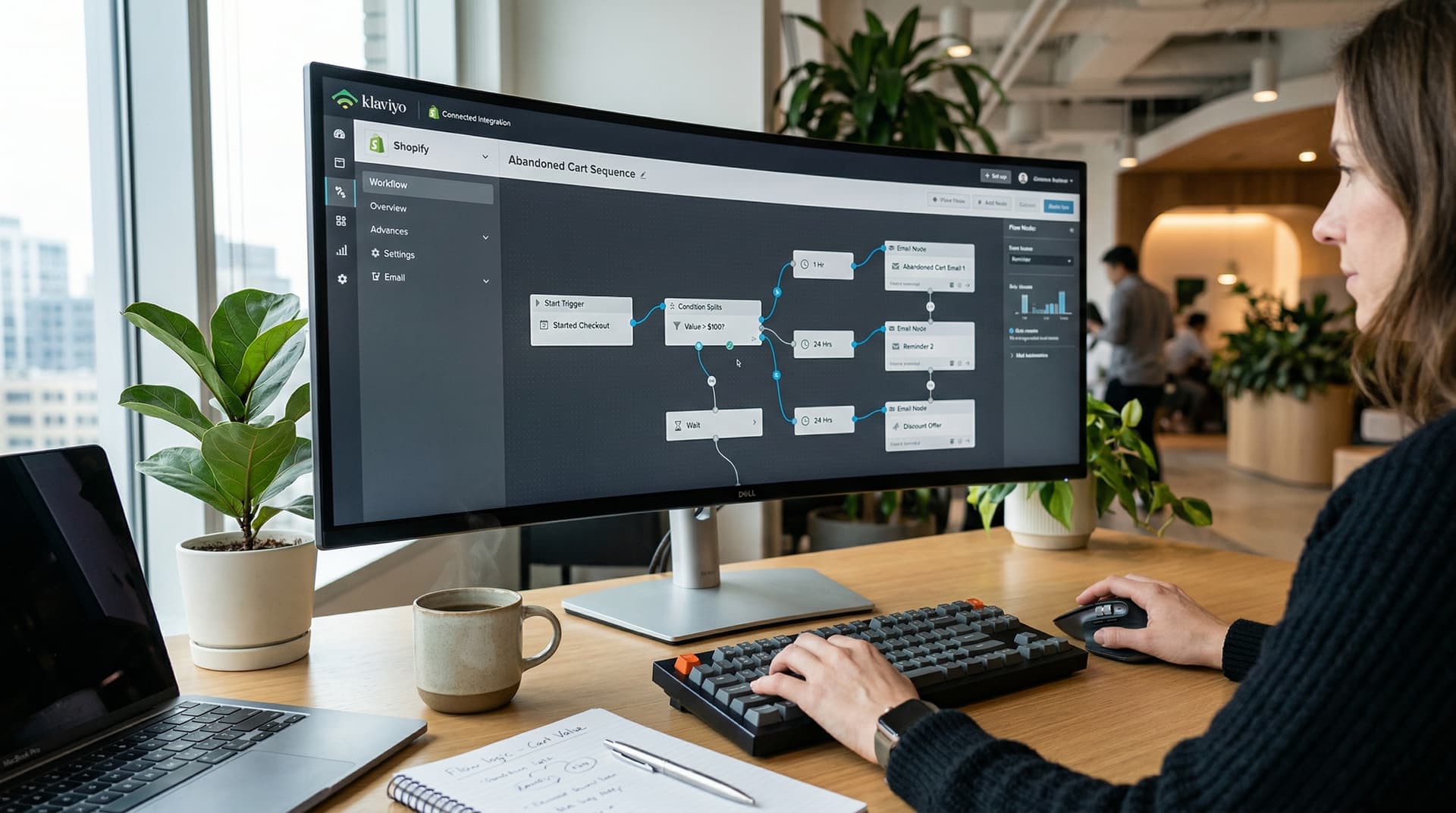
Klaviyo's default abandoned cart flow is a starting point. Here's how to turn it into something that actually recovers meaningful revenue.
The short version
- Klaviyo has two abandoned cart triggers: "Started Checkout" and "Added to Cart." Use both as separate flows. Started Checkout catches higher-intent abandoners. Added to Cart catches earlier-stage browsers.
- Shopify's built-in abandoned checkout email recovers 5-8% of carts. Klaviyo's sequenced approach recovers 15-25%. If you're still using Shopify's native email, switch.
- The default Klaviyo flow is a single email. You need at least three. Add time delays and conditional splits to build a proper sequence.
- Klaviyo abandoned cart flows convert at 4-5% on average. Triggers convert at 7-8%. Top performers hit 15%+.
- The most common setup mistake: leaving the first email at Klaviyo's default timing instead of changing it to 30-60 minutes.
- Disable Shopify's native abandoned checkout email before turning on Klaviyo's flow. Running both means customers get duplicate messages.
If you're on Shopify and Klaviyo -- and most serious ecommerce stores are -- the abandoned cart flow is the single highest-revenue automation you can build. Klaviyo data across 183,000+ brands shows abandoned cart flows produce $3.65 RPR on average, with the top 10% hitting $28.89. No other flow comes close.
But most Klaviyo users are running the default pre-built flow with one email, default timing, and zero conditional logic. It works, the same way a bicycle works for a cross-country trip. Technically functional. Not what you'd choose if you knew the alternative.
This guide walks through building a proper abandoned cart flow in Klaviyo from scratch, with the Shopify integration specifics that matter. If you're on WooCommerce, we have a separate guide for that - coming soon. If you're on Mailchimp + WooCommerce, that's here - coming soon.
This post is part of our Abandoned Cart Email Ultimate Guide series.
Setting up abandoned cart emails in Klaviyo for Shopify requires two separate flows: a Started Checkout flow (your primary recovery sequence) and an Added to Cart flow (for shoppers who added items but never reached checkout). This guide walks through both, step by step.
How do I set up abandoned cart emails in Klaviyo?
Disable Shopify's native abandoned checkout email first. Then create a Started Checkout flow with a 30–60 minute first send, add conditional splits by cart value and customer status, build 2–3 email templates (reminder, social proof, incentive), and enable A/B testing on subject lines and timing. Add a separate Added to Cart flow for earlier-stage abandoners.
Step 0: Disable Shopify's native abandoned checkout email
Before you build anything in Klaviyo, turn off Shopify's built-in abandoned checkout email. If both are running, your customers get two separate abandoned cart emails -- one from Shopify and one from Klaviyo -- often within minutes of each other. It looks unprofessional, confuses customers, and inflates your unsubscribe rate.
To disable it: Shopify admin > Settings > Checkout > scroll to "Abandoned checkouts" > uncheck "Automatically send abandoned checkout emails." Save.
Some stores keep Shopify's email running by accident for months after setting up Klaviyo. Check this first.
Why Klaviyo over Shopify's native email
The difference isn't subtle:
| Capability | Shopify native | Klaviyo |
|---|---|---|
| Number of emails | 1 | Unlimited (3+ recommended) |
| Trigger options | Started Checkout only | Started Checkout + Added to Cart |
| Conditional splits | None | By cart value, customer status, product, segment |
| A/B testing | None | Subject lines, content, timing, sender |
| Dynamic product blocks | Basic | Full dynamic blocks with product recommendations |
| Browse abandonment | Not available | Available as separate flow |
| SMS integration | Not available | Built into the same flow |
| Typical recovery rate | 5-8% | 15-25% |
| Conversion reporting | Inaccurate (clicks-based, not send-based) | Accurate per-recipient metrics |
Shopify's email is fine if you have no other option. But if you're already paying for Klaviyo, there's no reason to use Shopify's version. It's like paying for a gym membership and exercising in the parking lot.
Step 1: Choose your trigger
Klaviyo offers two triggers for cart abandonment. They catch different audiences, and the best setup uses both as separate flows.
What is the difference between abandoned cart and abandoned checkout in Klaviyo?
In Klaviyo, "Added to Cart" fires when a shopper adds an item but never begins checkout — lower intent, broader audience. "Started Checkout" fires when someone opens the checkout form and enters their email but doesn't complete the order — higher intent, higher conversion rates. Most brands should run both as separate flows with filters to prevent overlap.
Trigger A: Started Checkout (higher intent)
This fires when a customer enters the checkout process and provides their email address. They've added items to the cart, clicked "Checkout," and entered at least their email before leaving.
This is the default trigger in Klaviyo's pre-built abandoned cart flow. It captures the highest-intent abandoners -- people who were actively trying to buy and stopped. Conversion rates on this trigger are higher because the audience was closer to purchasing.
Trigger B: Added to Cart (earlier stage)
This fires when a customer adds any item to their cart. No checkout required. No email address required (for tracked profiles).
This captures a much larger audience, including casual browsers who add to cart while window shopping. Conversion rates are lower per recipient, but the larger audience often generates more total revenue.
The catch: Added to Cart fires a separate event for each product added. If someone adds three items, they trigger the flow three times. You need a filter to prevent this: add a flow filter of "Has Not Started Checkout since starting this flow" to prevent overlap with the Started Checkout flow.
The recommended setup: run both
Create two separate flows:
Flow 1: Started Checkout (abandoned checkout)
- Higher intent audience
- More aggressive messaging and timing
- This is your primary cart recovery flow
Flow 2: Added to Cart (abandoned cart)
- Broader audience, lower intent
- Softer messaging
- Filter: exclude anyone who already entered the Started Checkout flow
This captures the full abandonment funnel. Someone who added to cart but never started checkout gets a softer nudge. Someone who entered checkout and bailed gets a more direct recovery sequence.
Step 2: Build the Started Checkout flow (your primary flow)
Go to Klaviyo > Flows > Create Flow > start from scratch or select the "Abandoned Cart" pre-built flow and modify it.
The three-email structure
Email 1: Reminder
Time delay: 30-60 minutes after trigger (change from Klaviyo's default)
Subject line: "[Name], you left the [Product] in your cart"
Content:
- Dynamic product block showing the cart contents (Klaviyo pulls this automatically from the Shopify event data)
- Product image, name, price, quantity
- Single CTA button: "Complete your order" linking back to the Shopify checkout
- Short copy: 1-2 sentences max. "Looks like you left something behind. Your cart is saved and ready."
No discount. No urgency. Just the reminder.
To set up the dynamic product block: in the email editor, drag in an "Event Variables" block or a "Table" block. Map it to the event's item data. Klaviyo's default abandoned cart template already has this built in. Customize the design to match your brand.
Email 2: Social proof
Time delay: 24 hours after email 1
Subject line: "[Product] has 4.8 stars -- see what customers say"
Content:
- Cart contents again (dynamic block)
- Star rating pulled from your reviews app (Yotpo, Stamped, Judge.me integrate with Klaviyo)
- 1-2 short customer review quotes
- CTA: "Return to your cart"
- Optional: mention return policy or shipping speed
If you can't dynamically pull reviews (integration limitations), manually add your top 2-3 product review quotes in the email template. It's less elegant but still works.
Email 3: Incentive (if applicable)
Time delay: 24-48 hours after email 2
Subject line: "Free shipping on your order -- expires in 24 hours"
Content:
- Cart contents (dynamic block)
- Coupon code or automatic discount (Klaviyo can generate unique codes per recipient)
- Clear expiration: "This offer expires in 24 hours"
- CTA: "Complete your order with free shipping"
- Below the fold: customer reviews, trust badges
To create a unique coupon per recipient: go to Klaviyo > Coupons > create a new coupon synced with your Shopify discount. Insert it in the email using the coupon block. Each recipient gets a unique code, preventing sharing.
For the full strategy on when and whether to discount, see our discount strategy guide.
Step 3: Add conditional splits
Conditional splits are where Klaviyo pulls ahead of every other platform. They let you send different emails to different segments within the same flow.
Split by cart value
The highest-ROI split. Create a conditional split after the trigger:
- Cart value > $150: Extended sequence (4-5 emails), more persuasion content, possibly a larger incentive in email 3
- Cart value $50-150: Standard 3-email sequence
- Cart value < $50: Shorter sequence (2 emails), no discount -- the margin doesn't justify it
To set this up: add a "Conditional Split" component. Condition: "Event property > Value > is greater than [amount]." The "value" property comes from the Shopify checkout event.
Split by customer status
- Has placed order > 0 times > all time: Returning customer. They know your brand. A simple reminder is probably enough. Skip the social proof and trust signals.
- Has placed order > 0 times > all time = False: First-time visitor. Include reviews, return policy, trust badges. They need reassurance because they've never bought from you.
Split by product category
If you sell across categories with different price points or purchase dynamics:
- Event product category = "Electronics": Longer consideration. Include comparison guides and specs.
- Event product category = "Accessories": Impulse-adjacent. Shorter sequence, lighter touch.
Product category splits work best for stores with diverse catalogs. A store selling only one type of product doesn't need this.
Step 3b: Design your email templates
The templates in Klaviyo's pre-built flow are functional but generic. Here's how to customize them properly:
Email 1 template structure
Keep it ruthlessly simple. From top to bottom:
- Brand logo (small, top-left or centered, not a giant hero banner)
- Headline: One line. "You left something behind" or "Your cart is waiting, [Name]"
- Dynamic product block: Product image, name, price, quantity. Klaviyo's event variable block pulls this from the Shopify checkout data automatically. Make sure the product image is large enough to trigger recognition -- at least 200x200 pixels.
- CTA button: "Complete your order" or "Return to your cart." Make it prominent. Use a contrasting color. Minimum tap target of 44x44 pixels for mobile.
- Footer: Unsubscribe link, physical address (CAN-SPAM), brief "questions? reply to this email" note.
That's it. No hero image. No promotional banner. No "shop more" links. No social media icons competing with the CTA. The job of email 1 is to get the customer back to their cart, not to impress them with your email design.
Email 2 template additions
Same product block as email 1, plus:
- Review snippet: 1-2 star ratings or short customer quotes below the product. If you use Judge.me, Yotpo, or Stamped.io, these integrate with Klaviyo for dynamic review pulls. If not, hardcode your best 2-3 reviews.
- Trust elements: Return policy one-liner, shipping speed, payment security badge. Place these below the product block but above the CTA.
Email 3 template additions
Same product block, plus:
- Coupon code: Either displayed in the email body or auto-applied via the checkout link. To auto-apply: append
?discount=YOURCODEto the Shopify checkout URL in the CTA button. - Expiration notice: "This offer expires in 24 hours" in a visually prominent location (colored text or a banner). The deadline needs to be real -- use Klaviyo's flow timing to ensure the next email doesn't go out after the discount expires.
Mobile design checklist
Before you go live, send a test email to your phone and check:
- Does the product image load quickly and display at a readable size?
- Can you tap the CTA button easily with your thumb? (Minimum 44px height)
- Does the email render in a single column without horizontal scrolling?
- Does it look correct in dark mode? (Test on both iOS and Android)
- Is the text readable without zooming? (Minimum 14px font for body copy)
- Does the unsubscribe link work?
80% of your audience will see this email on a phone. If the mobile experience is broken, you've lost them before the copy or the offer even matters.
For more on cart email design principles: Abandoned Cart Email Design Guide.
Step 4: Add SMS to the flow (optional but recommended)
If you have SMS consent from some of your subscribers, add an SMS node to the flow:
- After the trigger, before the first email: add a conditional split checking "Person can receive SMS"
- For SMS-enabled contacts: send an SMS at 15 minutes ("Hey [Name], your [Product] is waiting: [link]")
- Then continue with the email sequence at 1 hour
This gives your SMS-consented audience the fastest possible touchpoint while everyone else gets the email sequence.
To add SMS: drag an "SMS" action into the flow. Write the message (under 160 characters). Include a dynamic cart link using the Shopify checkout URL from the event data.
For the full email vs. SMS comparison: Abandoned Cart Email vs. SMS
Step 5: Set up A/B testing
Klaviyo supports A/B testing within flows. Start by testing the variables that have the biggest impact:
Subject line on email 1. This is the highest-leverage test because email 1 drives the most recovery. Test personalized ("[Name], you left the [Product]") vs. generic ("You left something behind"). Run at 50/50 split until you have 1,000+ recipients per variant.
Timing on email 1. Test 30 minutes vs. 1 hour. The data suggests 30 minutes wins, but your audience might be different. Klaviyo lets you A/B test time delays directly.
Discount vs. no discount on email 3. This is the most important strategic test. Half the audience gets free shipping, half gets no incentive. Compare not just conversion rate, but revenue per recipient across the entire flow. A higher conversion rate at a lower margin isn't necessarily a win.
To set up an A/B test in a flow: click on the email node, select "A/B test," configure your variants and split ratio. Klaviyo tracks performance per variant and can auto-select the winner after a set period.
Step 6: Build the Added to Cart flow (secondary flow)
This catches the broader audience -- people who added to cart but never started checkout.
Trigger: Added to Cart
Critical filter: "Has Not Started Checkout since starting this flow" = True. Without this, customers entering the checkout flow will also receive the Added to Cart emails, creating duplicates.
Additional filter: "Has Not Been in This Flow in the Last 30 Days." This prevents the same person from triggering the flow every time they add a product.
Timing: Longer delays than the checkout flow. These are lower-intent shoppers.
| Timing | Content | |
|---|---|---|
| 1 | 2-4 hours | Soft reminder: "Still interested in the [Product]?" |
| 2 | 48 hours | Social proof or "customers also love" recommendations |
Keep this flow to two emails. These shoppers didn't even start checkout. Three emails about a product they casually browsed feels like too much.
The copy should be softer than the checkout flow. "Still browsing?" rather than "Complete your purchase." These people weren't purchasing. They were shopping.
Common Klaviyo abandoned cart mistakes
After seeing hundreds of Klaviyo flows across different stores, these are the mistakes that show up most:
Running Shopify's native email alongside Klaviyo. Duplicate messages. Disable Shopify's email first.
Using Klaviyo's default timing without changing it. The default might be set to hours after abandonment rather than 30-60 minutes. Check and adjust.
Only one email in the flow. The default pre-built flow often has one email. Add two more. A single email recovers about half of what a three-email sequence does.
No conditional splits. Everyone gets the same emails regardless of cart value, customer history, or product type. This is the biggest optimization opportunity most stores miss.
Sending a discount in email 1. Giving away margin on sales that would have happened at full price. Move the discount to email 3 at the earliest.
No suppression for purchasers. If someone buys after email 1, they should not get email 2. Add a flow filter: "Placed Order > at least once > since starting this flow" to suppress purchasers. Klaviyo's pre-built flow usually includes this, but verify it.
Not filtering the Added to Cart flow. Without the "Has Not Started Checkout" filter, customers in both flows get double the emails. Set the exclusion.
Broken dynamic product blocks. If the product image, name, or price doesn't populate correctly, the email looks broken. Test the flow by triggering a test event (add a product to cart on your own store) and checking the preview email. Fix any mapping issues before going live.
Not testing on mobile. 80% of cart abandonment happens on phones. If your email looks good on desktop but breaks on mobile, you've lost the majority of your audience. Send a test email to your phone and check it.
Troubleshooting common problems
"My flow isn't sending any emails"
Check three things: (1) Is the flow set to "Live" or still in "Draft/Manual" status? New flows default to manual. (2) Does the trigger have flow filters that are too restrictive? A filter like "Has not been emailed in the last 90 days" can suppress most of your audience. (3) Is the Shopify-Klaviyo integration syncing correctly? Go to Klaviyo > Integrations > Shopify and check the last sync time and any error messages.
"Product images aren't showing in the email"
The dynamic product block maps to image URLs from your Shopify product data. If images are missing: (1) Check that your Shopify products have images uploaded (not just variant images). (2) Preview the flow email using a real event -- Klaviyo's generic preview won't populate dynamic blocks. (3) Some image CDN settings or lazy-loading configurations can break image URLs when pulled into email. Test with a real abandoned cart event on your own store.
"Customers are receiving the email even after they bought"
Your suppression filter is either missing or misconfigured. The flow needs a filter: "What someone has done > Placed Order > at least once since starting this flow." This checks in real-time before each email sends. If it's already there and not working, check that the "Placed Order" metric name matches exactly what your Shopify integration sends (it should be "Placed Order" by default, but custom integrations sometimes use different names).
"My RPR is way below the $3.65 average"
Common causes: (1) Timing is too late -- email 1 going out after 4+ hours instead of 30-60 minutes. (2) Your audience is mostly low-AOV -- $3.65 is a blended average across all price points. A store with $20 AOV will naturally have lower RPR than one with $200 AOV. (3) Your emails are going to spam. Check deliverability in Klaviyo's analytics. If open rates are under 20%, you likely have a deliverability issue.
"The Added to Cart flow is firing multiple times for the same customer"
Expected behavior -- the Added to Cart event fires once per product added. Add a flow filter: "Has not been in this flow in the last 30 days" to prevent one customer from receiving multiple instances of the flow. Also add "Has Not Started Checkout since starting this flow" to prevent overlap with the checkout flow.
Benchmarks to measure against
Once your flow is running, here's what good looks like:
| Metric | Below average | Average | Good | Top 10% |
|---|---|---|---|---|
| Open rate | <30% | 30-40% | 40-50% | >50% |
| Click rate | <3% | 3-5% | 5-8% | >8% |
| Conversion rate (flow) | <3% | 4-5% | 5-10% | >10% |
| Conversion rate (trigger) | <5% | 7-8% | 8-12% | >12% |
| Revenue per recipient | <$1 | $1-3 | $3-10 | >$10 |
| Top 10% RPR | — | — | — | $28.89 |
Source: Klaviyo 2026, 183,000+ brands
Klaviyo's 2026 data puts the average RPR at $3.65, with top performers at $28.89. Flow-level conversion sits at 4–5%, though trigger-level rates run higher at 7–8%. Compared to Shopify's native email (5–8% recovery), Klaviyo's sequenced approach recovers 15–25%.
If you're below average, check: timing (is email 1 going out within an hour?), content (is the product image showing correctly?), suppression (are you emailing people who already bought?), and deliverability (are you landing in the inbox?).
If you're at average and want to improve, add conditional splits by cart value and customer status. This is consistently the change that moves Klaviyo flows from average to good.
Geysera deploys and manages Klaviyo flows for ecommerce brands — including cart abandonment, checkout abandonment, and browse abandonment. We measure everything by incremental lift. Let us build yours →
Frequently asked questions
Should I use "Started Checkout" or "Added to Cart" as my trigger?
Both, as separate flows. Started Checkout captures higher-intent abandoners and will be your primary flow. Added to Cart captures earlier-stage browsers with softer messaging. Make sure to filter the Added to Cart flow to exclude anyone who entered the Started Checkout flow.
How do I disable Shopify's abandoned checkout email?
Shopify admin > Settings > Checkout > uncheck "Automatically send abandoned checkout emails." Do this before activating your Klaviyo flow.
What if I'm on Shopify's free email plan and also have Klaviyo?
Disable Shopify's abandoned checkout email entirely and use Klaviyo for all cart recovery. There's no reason to run both. Klaviyo's flow will outperform Shopify's single email by 2-3x.
How many emails should I have in my Klaviyo flow?
Three for the Started Checkout flow. Two for the Added to Cart flow. High-AOV stores might extend the checkout flow to 4-5 emails. See our full flow timing guide.
Can I add SMS to the same flow?
Yes. Klaviyo supports SMS and email in the same flow. Add a conditional split checking for SMS consent, then add an SMS node before the first email for consented contacts. This gives them a text at 15 minutes and an email at 1 hour.
How do I know if my flow is working?
Check RPR (revenue per recipient) at the flow level and at each email level. Compare against the benchmarks table above. If email 1 has significantly lower RPR than expected, check your timing and subject line. If email 3 has the highest RPR and it includes a discount, consider testing email 3 without a discount to see how much of that revenue was incremental.
Back to the pillar: Abandoned Cart Email: The Ultimate Guide
Next in the series: Abandoned Cart Email Design: Templates, Layout, and CTA Best Practices - coming soon
This guide is the hub of a 13-part series on abandoned cart email. Each spoke post goes deeper on a specific topic:
- Abandoned Cart Email: The Ultimate Guide to Recovering Lost Revenue in 2026
- Abandoned Cart Email Subject Lines That Actually Get Opened
- Cart Abandonment Rate by Industry: 2026 Benchmarks
- The Perfect Abandoned Cart Email Flow: Timing and Sequence
- 40+ Abandoned Cart Email Examples from Top DTC Brands
- Abandoned Cart Email vs. SMS: Which Recovers More Revenue?
- Why Customers Abandon Carts (And How to Fix Each Reason)
- Abandoned Cart Email Discounts: When to Offer and When to Hold Back
- How to Set Up Abandoned Cart Emails in Klaviyo + Shopify (you are here)
- Abandoned Cart Email Design: Templates, Layout, and CTA Best Practices (coming soon)
- Browse Abandonment vs. Cart Abandonment: The Complete Recovery Playbook (coming soon)
- WooCommerce Abandoned Cart Email: Complete Setup and Plugin Guide (coming soon)
- Mailchimp Abandoned Cart Email for WooCommerce: Setup and Plugin Guide (coming soon)
Sources
Klaviyo Help Center: Abandoned Cart Flow Documentation | Klaviyo Help Center: Added to Cart Flow for Shopify | Klaviyo Community: Abandoned Cart vs Checkout Started | Klaviyo 2026 Benchmarks (183,000+ brands) | BS&Co Complete Guide to Klaviyo Flows 2026 | Ancorrd Klaviyo Abandoned Cart Setup Tutorial | Fuel Made: Klaviyo vs Shopify Email Comparison

Co-Founder and CEO
Bob Thordarson is CEO and Co-Founder of Geysera, a serial entrepreneur with 25+ years and five co-founded ventures, including Cequint (acquired by TNS in 2010 for $112.5M) and Consumerware (acquired by ParkerVision). A graduate of the University of Washington and MIT Entrepreneurial Masters Program, based in Seattle, he serves on the boards of DRY Soda Co. and the Entrepreneurs' Organization Seattle chapter. He is an expert in retention marketing email systems and methodology for ecommerce and B2B brands — measured by incremental revenue, not vanity metrics.