WooCommerce Email Notifications and Templates: The Complete 2026 Setup Guide
WooCommerce ships with about a dozen transactional email notifications and a basic template editor, and most stores never get past configuring them. This guide covers all of it: the default notifications, the Settings > Emails tab, customizing and overriding templates, and why your emails land in spam or never send. Then it covers the part almost no store sets up: the welcome series, the seven-email sequence that turns a first-time buyer into a repeat customer.
Last updated: June 13, 2026
This is post 10 of 17 in the WooCommerce Email Marketing in 2026 Series. Previous: Top 10 WooCommerce Email Automation Tools in 2026 (ESP-Locked vs ESP-Agnostic)
Search anything about WooCommerce email and the results split into two piles. One pile is setup and repair: the official email settings docs, a WP Mail SMTP walkthrough, a "WooCommerce not sending emails, how to fix it" tutorial, a Reddit thread titled "email notifications not happening." The other pile is customization: template plugins, the email customizer, "5 must-have custom email templates," a dozen YouTube tutorials on changing the header logo. Put together, that is the entire public conversation about WooCommerce email. It is all about the confirmations your store sends automatically.
That is worth getting right, and the first half of this guide does exactly that: the default notifications WooCommerce ships with, where to configure them, how to customize and override the templates, and why those emails sometimes land in spam or never arrive. But there is a second half almost nobody covers, and it is where the revenue is. The same store that spent an afternoon perfecting its order-confirmation logo has no welcome series at all: no planned sequence that greets a new subscriber or first-time buyer and turns them into a second order. This guide covers both: the transactional foundation everyone searches for, and the welcome series almost no WooCommerce store actually sends.
KEY STATS
- A default WooCommerce install ships with roughly a dozen built-in email notifications, managed under WooCommerce > Settings > Emails, split between customer-facing and admin-facing messages (WooCommerce email settings documentation, 2026)
- WordPress sends mail through PHP's mail() function by default, which many hosts throttle or block and most spam filters distrust, which is why "WooCommerce not sending emails" and an SMTP plugin are the most common first fixes (WooCommerce email and SMTP documentation, 2026)
- "woocommerce email customizer" draws about 170 searches a month, "woocommerce email templates" about 70, and "woocommerce email notifications" about 30, so the public demand is concentrated almost entirely on transactional setup, not marketing (DataForSEO, June 2026)
- Welcome emails earn far more per send than standard promotional campaigns, with reported open rates around 50% versus roughly 20% for a typical campaign (Omnisend and industry welcome-email benchmarks, 2025-2026)
- Automated, behavior-triggered flows earn roughly 18x the revenue per recipient of one-off broadcast campaigns, and a welcome series is the first such flow most stores are missing (Klaviyo and MailerLite benchmarks, 2025-2026)
- Data sourced from the live "woocommerce email notifications" and "woocommerce email templates" SERPs (DataForSEO, June 2026), the WooCommerce.com email documentation, and aggregated 2025-2026 email benchmarks
What's in this guide:
- The two kinds of WooCommerce email
- The default WooCommerce email notifications
- Configuring your WooCommerce email settings
- Customizing WooCommerce email templates
- Why your WooCommerce emails don't send (and how to fix it)
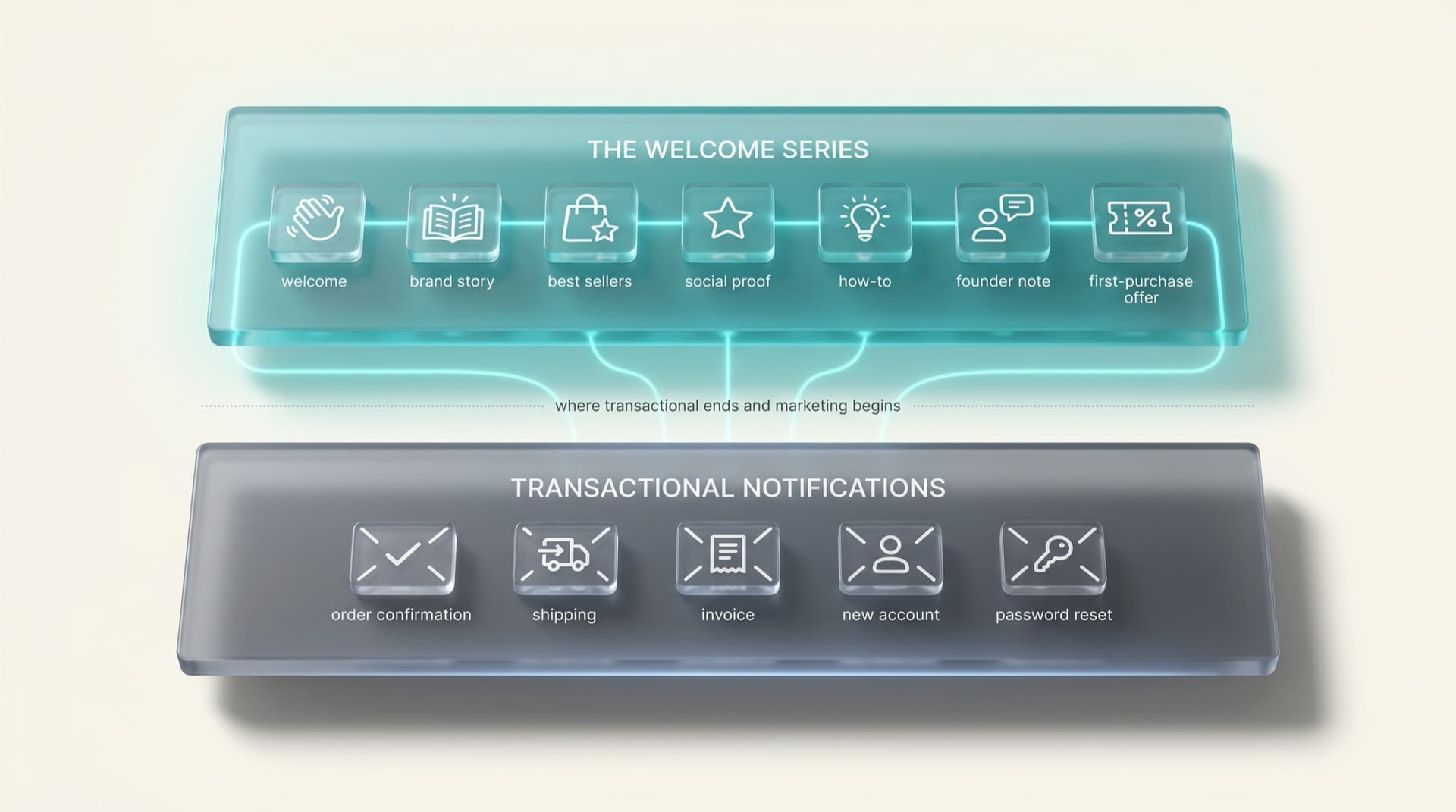
- Where transactional ends and marketing begins
- The WooCommerce welcome series most stores skip
- How to send a welcome series on WooCommerce
- Frequently asked questions
The two kinds of WooCommerce email
Almost every problem people have with WooCommerce email comes from treating one category as if it were the other.
The first category is transactional. These are the automatic notifications WooCommerce sends in response to something that happened: an order was placed, a payment failed, an account was created, a password needs resetting. They are one-to-one, they are expected, and the customer is usually waiting for them. Their whole job is to confirm and inform. WooCommerce handles these out of the box, which is why most of the public guidance is about them.
The second category is marketing. These are the messages you choose to send to build a relationship and drive a second purchase: a welcome series, a cart-recovery sequence, a browse-abandonment flow, a winback campaign. They are one-to-many, they run on a schedule or a behavior trigger, and the customer did not ask for any specific one of them. WooCommerce does not handle these natively at all. That is a deliberate boundary, not a gap in the software, and it is the reason this series exists.
The confusion is everywhere. Store owners try to bolt a "thanks for your order, here's 10% off your next one" promotion onto the transactional order-confirmation email, because that is the email WooCommerce gives them. It half-works and it teaches the wrong lesson, because the transactional layer was never built to do marketing. Getting the foundation right first, then adding the marketing layer on top deliberately, is the whole point. So we will do the transactional setup properly, and then move up a layer.
The default WooCommerce email notifications
Install WooCommerce and you immediately have a working set of transactional emails. You can see and manage all of them under WooCommerce > Settings > Emails, which is the single most useful screen in this entire guide and the one most store owners never fully read.
The default notifications divide into two audiences. Some go to the customer, some go to you, the store admin.
The customer-facing emails are the ones shoppers actually see:
- Processing order — sent when payment is received and the order is being prepared. For most stores this is the de facto "order confirmation" email.
- Completed order — sent when the order is marked complete, usually after shipping.
- Order on-hold — sent when an order is awaiting payment, common with bank transfer or check.
- Cancelled order and Refunded order — status-change notices.
- Customer invoice / order details — a manual send you can trigger from the order screen, useful for unpaid orders and pay-by-link.
- New account — the welcome-to-your-account email sent when someone registers, often confused with a marketing welcome email but strictly transactional.
- Reset password — account security.
The admin-facing emails keep you informed:
- New order — your "you made a sale" alert.
- Cancelled order and Failed order — so you can act on problem transactions.
Each of these can be switched on or off, has its own subject line and heading, and shares the store-wide template styling. The important thing to understand is the boundary: this list is the complete native email capability of WooCommerce. There is no "welcome series" toggle, no "abandoned cart" notification, no "we miss you" email in this list, because none of those are transactional. Everything past this screen is something you add.
Rodolfo Melogli, who has run Business Bloomer since 2011 and is one of the most-referenced independent WooCommerce educators, has published years of code snippets for bending these default emails to a store's needs: adding content to the new-account email, customizing the order emails, changing what triggers each one (Business Bloomer). His body of work is a good reminder of where the native system's edges are: you can customize what these emails say and look like, but you cannot make WooCommerce send an email it was never designed to send without bringing in another tool.
Configuring your WooCommerce email settings
The Emails tab has two layers of settings, and they trip people up because they live in different places.
The store-wide settings sit at the top of WooCommerce > Settings > Emails. This is where you set the "from" name and "from" address that all your emails send under, the header image (your logo), the base, background, body, and text colors, and the footer text. Set these once and every transactional email inherits them. The single most important field here is the "from" address: it should be an address on your own domain (orders@yourstore.com), never a free Gmail or Yahoo address, because using an off-domain sender is one of the fastest ways to get your store's mail flagged as spam.
The per-email settings sit below, one row per notification. Click into any email and you can enable or disable it, rewrite its subject line and heading, choose whether it sends as HTML or plain text, and for the customer invoice, see how to trigger it manually. This is also where you set the recipient address for the admin notifications, which by default go to your store admin email and often need pointing at a real person who actually watches the inbox.
Two settings matter more than the rest. First, the recipient on the New order admin email, because a surprising number of stores miss sales for days because that alert is going to an unmonitored address. Second, the "from" address already mentioned, because it governs deliverability for every other email on the list. Configure those two correctly and you have solved most of what people are actually asking when they search "woocommerce email settings."
Customizing WooCommerce email templates
This is the most-searched corner of the whole topic, and it has three tiers depending on how far you need to go.
Tier one: the built-in settings. For most stores, the logo, colors, and footer text in the Emails tab are enough to make the default emails look like they belong to the brand. WooCommerce now also includes a live email preview so you can see changes before they go out. If all you need is your logo at the top and your brand color on the buttons, you do not need a plugin or a developer. Start here.
Tier two: a template customizer plugin. When you want drag-and-drop control (restructured layouts, custom blocks, product recommendations inside the order email, a different design per email), a customizer plugin is the common route. The official WooCommerce Email Customizer and several third-party plugins (the well-reviewed Email Template Customizer for WooCommerce among them) let you build templates visually without touching code. This is the tier the 170-a-month "woocommerce email customizer" searchers are usually looking for, and for a non-developer it is the right trade: a small plugin dependency in exchange for full visual control.
Tier three: template overriding in your theme. WooCommerce stores its email templates as PHP files in the plugin's /templates/emails/ directory, and you can override any of them by copying the file into your theme at yourtheme/woocommerce/emails/. This gives a developer total control and survives plugin updates, but it is code, it needs maintaining, and it is overkill for cosmetic changes. Reserve it for genuinely custom requirements.
The trap at every tier is the same one from the start of this guide: people pour effort into making the order-confirmation email beautiful, then call their "email" done. A perfectly branded transactional template is table stakes. It confirms an order that already happened. It does not bring anyone back. Get it clean, then stop polishing it and go build the thing that actually grows revenue.
Why your WooCommerce emails don't send (and how to fix it)
If your notifications are configured correctly and customers still are not receiving them, the problem is almost never WooCommerce. It is how WordPress sends mail.
By default, WordPress hands email to PHP's mail() function, which asks your web server to send the message directly. Three things go wrong with that. Many hosts throttle or outright block PHP mail to prevent spam abuse, so the email never leaves the server. When it does leave, it often sends from a server address with no proper authentication, so receiving inboxes distrust it and route it to spam. And there is no log, so you cannot tell whether a missing email was never sent or was sent and filtered.
The standard fix is an SMTP plugin. Tools like WP Mail SMTP and Easy WP SMTP reroute your store's email through an authenticated sending service (your own mailbox provider, or a dedicated sender like SendGrid, Mailgun, or Amazon SES) instead of raw PHP mail. That gets you proper authentication, far better deliverability, and a log of what actually sent. The setup is the same regardless of which transactional emails you are sending, which is why "install an SMTP plugin" is the near-universal first answer in every "WooCommerce not sending emails" thread.
The checklist, in order:
- Confirm the email is enabled and pointed at the right recipient in WooCommerce > Settings > Emails.
- Set the "from" address to an address on your own domain.
- Install and configure an SMTP plugin to send through an authenticated service.
- Add SPF, DKIM, and DMARC records for your domain so inboxes trust your mail.
- Send a test and check the SMTP plugin's log to confirm delivery.
Deliverability is its own discipline once you move past transactional mail into marketing volume, and we go deep on it for stores running real sending programs in the WooCommerce + SendGrid full-funnel guide. But for the default notifications, an SMTP plugin and a domain-aligned sender address solve the overwhelming majority of cases.
Where transactional ends and marketing begins
Here is the line. Everything to this point is the foundation, and a store can run on it. But a foundation is not a strategy.
Transactional email is reactive. It only fires after the customer does something, and it only ever speaks to people who have already bought or registered. It confirms, it informs, and then it goes quiet. A store that has only configured its notifications has built a system that says "thank you for your order" perfectly and says nothing else, ever. The relationship starts and ends at the transaction.
Marketing email is proactive. It reaches out on a schedule you design, to people who have shown interest but may not have bought yet, with a deliberate goal: a second purchase, a reactivated customer, a recovered cart. WooCommerce gives you none of it natively, which is exactly why this series spends fifteen of its seventeen posts on it.
The first marketing flow every store should add, and the one with the clearest payoff, is the welcome series. It is the bridge from "someone just gave you their email or placed a first order" to "that person is now a repeat customer." And almost no WooCommerce store sends one.
Most stores I see have spent real time getting their order-confirmation email to look right, and zero time on what happens next. That is backwards. The confirmation email goes to someone who already paid you. The decision is made. The welcome series goes to someone who just raised their hand and is deciding whether you are worth a second look. One of those two moments is where the money is, and it is not the receipt.
— Bob Thordarson, Geysera CEO
The WooCommerce welcome series most stores skip
A welcome email is one message. A welcome series is a planned sequence of them, sent over the first week or two of a new relationship, each with a single job. The series outperforms the single email for the same reason a conversation outperforms a greeting: it has room to do more than say hello.
The numbers behind it are unusually strong. Welcome emails see open rates around 50%, more than double a typical campaign, because the recipient just signed up or just bought and your brand is at the front of their mind. That attention window closes fast, which is the entire argument for a sequence rather than a single send: you have a short, high-intent period, and a series uses all of it instead of one slice.
Here is a seven-email welcome series built for a WooCommerce store. The timing assumes a new subscriber or first-time buyer; tighten or loosen it to match your sales cycle.
| # | Timing | The one job | |
|---|---|---|---|
| 1 | The welcome and the promise | Immediately | Deliver what they signed up for (the discount, the guide), confirm they are in, set expectations for what's coming |
| 2 | The brand story | Day 1-2 | Why your store exists and who it's for, the reason to care beyond price |
| 3 | Start here | Day 3-4 | Your best sellers or a guided "what to buy first," removing the paralysis of a full catalog |
| 4 | Social proof | Day 5-6 | Reviews, ratings, user photos, press: let other customers do the convincing |
| 5 | Get the most from it | Day 7-9 | How-to, care, or use-case content that makes the product feel like a smart choice |
| 6 | The founder note | Day 10-12 | A personal, plain-text message that builds the human relationship a storefront can't |
| 7 | The first-purchase nudge | Day 13-14 | A clear call to buy, often with a gentle deadline on the welcome offer from email one |
A few principles hold the sequence together. Email one has to deliver immediately and reliably, because if the discount code or the promised guide does not arrive, the rest is wasted; this is where the transactional deliverability work from earlier pays off. The middle emails earn the sale before they ask for it, which is why the hard call to action waits until email seven. And the whole series should stop the moment someone purchases, rolling them instead into a post-purchase flow. Continuing to send "please buy" emails to someone who just bought is the fastest way to lose them.
Adrian Tobey, founder of Groundhogg and one of the clearest voices on marketing automation inside WordPress, has argued for years that the value is in the sequence and the behavior logic, not the individual message: automation earns its keep when it responds to what someone actually does, like buying mid-series, rather than blasting a fixed list on a fixed schedule (Do the Woo). A welcome series is the simplest place to put that principle to work.
How to send a welcome series on WooCommerce
Since WooCommerce will not send a welcome series natively, the question is what you add to do it. There are four realistic routes, and the right one depends on what your store already runs.
AutomateWoo. WooCommerce's own automation extension can trigger a welcome workflow on a first order or a new account, and it lives right inside WordPress with direct access to your store data. It is the most native option and a strong fit for a store that wants to stay in the WooCommerce ecosystem and is comfortable building the sequence itself. Its examples library even includes the first-purchase welcome workflow that ranks at the top of Google for "woocommerce welcome email."
A WordPress-native CRM. FluentCRM and Groundhogg run the email sequence from inside your WordPress install, which keeps the data on your own server and gives you visual sequence builders designed for exactly this. For a store that wants marketing automation without sending its customer list to a third-party platform, this is the natural home for a welcome series.
Your existing ESP. If you already run Mailchimp, Klaviyo, or another email platform, it can run the welcome series, triggered when a contact joins the list. This is the path of least resistance if your ESP is already connected, though the depth of what you can do varies a lot by platform, which is the subject of the cohort guides in this series for Mailchimp, Klaviyo, and HubSpot.
An automation layer on top. The architecture this series is built on keeps whatever ESP you already use for broadcast and adds a behavior layer on top that runs the welcome series alongside cart recovery, browse abandonment, and winback as one connected program rather than four disconnected setups. The full picture is in The Modern Ecommerce Email Stack.
| Route | Best for | Trade-off |
|---|---|---|
| AutomateWoo | Staying fully native in WooCommerce | You build and maintain each workflow yourself |
| FluentCRM / Groundhogg | Keeping customer data on your own server | Another WordPress tool to run and learn |
| Existing ESP (Mailchimp, Klaviyo, etc.) | Stores already on an email platform | Welcome-series depth varies widely by platform |
| Automation layer on top | Running welcome alongside cart, browse, winback as one program | Adds a dedicated layer rather than a single plugin |
WooCommerce sends no welcome series natively, so every store adds one of four things: AutomateWoo to stay native, a WordPress CRM like FluentCRM or Groundhogg to keep data on-server, an existing ESP if one is already connected, or a dedicated automation layer that runs the welcome series alongside the other behavioral flows. The right choice depends on what the store already runs, not on which tool is best in the abstract.
Whichever route you pick, the welcome series is the highest-return marketing email a WooCommerce store can add, and it builds directly on the transactional foundation in the first half of this guide. Get the notifications clean and deliverable, then add the sequence that turns a first order into a second one. The full stack this fits into, and the four-ESP map behind it, is laid out in the WooCommerce email marketing 2026 pillar.
Frequently asked questions
How do I set up email notifications in WooCommerce?
Go to WooCommerce > Settings > Emails. From there you can enable or disable each of the roughly dozen built-in notifications, set the store-wide "from" name and address, add your logo and brand colors, and click into any individual email to edit its subject line, heading, and recipient. Set the "from" address to an address on your own domain, confirm the New order admin email points at an inbox someone watches, and send a test to check delivery.
What are the default WooCommerce email notifications?
A default install includes customer-facing emails (Processing order, Completed order, Order on-hold, Cancelled order, Refunded order, Customer invoice, New account, and Reset password) and admin-facing emails (New order, Cancelled order, and Failed order). All are transactional: they fire in response to an order or account event. WooCommerce does not include any marketing emails like a welcome series or abandoned-cart reminder natively.
How do I customize WooCommerce email templates?
There are three tiers. Use the built-in settings (logo, colors, footer) in WooCommerce > Settings > Emails for basic branding. Use a template customizer plugin, such as the WooCommerce Email Customizer or Email Template Customizer for WooCommerce, for drag-and-drop layout control without code. Or override the template PHP files in your theme at yourtheme/woocommerce/emails/ for full developer control. Start at the lowest tier that meets your need.
Why is WooCommerce not sending emails?
Almost always because WordPress sends mail through PHP's mail() function by default, which many hosts block and many inboxes distrust. The fix is to install an SMTP plugin (WP Mail SMTP or Easy WP SMTP) to send through an authenticated service, set your "from" address to your own domain, and add SPF, DKIM, and DMARC records. Then send a test and check the plugin's log to confirm whether mail is sending and being delivered.
How does WooCommerce send emails?
WooCommerce generates the email content, then hands it to WordPress's wp_mail() function, which by default passes it to PHP mail() on your web server. Because the web server is not a real email service, deliverability is unreliable. Routing wp_mail() through an SMTP plugin and an authenticated sending provider is the standard way to make WooCommerce email actually arrive.
What is the difference between a welcome email and a welcome series?
A welcome email is a single message sent when someone subscribes or makes a first purchase. A welcome series is a planned sequence of messages, usually five to seven, sent over the first week or two, each with a distinct job: deliver the signup offer, tell the brand story, show best sellers, prove social proof, and nudge the first or second purchase. The series consistently outperforms the single email because it uses the entire high-attention window after signup.
Does WooCommerce have a built-in welcome series?
No. WooCommerce's native emails are all transactional. The New account email is a one-time account notification, not a marketing welcome series. To send a welcome series you add a tool: AutomateWoo, a WordPress CRM like FluentCRM or Groundhogg, your existing ESP, or a dedicated automation layer.
What should the first email in a WooCommerce welcome series do?
Deliver immediately on whatever the person signed up for (the discount code, the guide, the free shipping offer), confirm they are subscribed, and set expectations for what is coming next. Reliable delivery matters most here, because if the promised reward does not arrive, the rest of the series is wasted. This is where getting your transactional deliverability right pays off directly.
Continue the series
This is post 10 of 17 in the WooCommerce Email Marketing in 2026 series.
- Start with the pillar: WooCommerce email marketing 2026 — the complete stack
- Previous in series: Top 10 WooCommerce Email Automation Tools in 2026 (ESP-Locked vs ESP-Agnostic)
- Next in series: WooCommerce Abandoned Cart Recovery: The 2026 Playbook
- The architecture behind the welcome series: The Modern Ecommerce Email Stack: Why Two Tools Beat One
If you want the WooCommerce-specific automation layer that runs the welcome series alongside cart, browse, and winback on top of whatever ESP you already use, that is what Geysera is built for.
Sources
- Email Settings documentation — WooCommerce
- How to Customize WooCommerce Emails — WooCommerce
- Email and SMTP providers documentation — WooCommerce
- Email troubleshooting documentation — WooCommerce
- Send new customers a welcome email — AutomateWoo / WooCommerce
- WooCommerce: Add Content To "New Account" Welcome Email — Business Bloomer (Rodolfo Melogli)
- CRM Insights and the Future of WordPress with Adrian Tobey — Do the Woo
- WooCommerce not sending emails: how to fix it — Easy WP SMTP

Co-Founder and CEO
Bob Thordarson is CEO and Co-Founder of Geysera, a serial entrepreneur with 25+ years and five co-founded ventures, including Cequint (acquired by TNS in 2010 for $112.5M) and Consumerware (acquired by ParkerVision). A graduate of the University of Washington and MIT Entrepreneurial Masters Program, based in Seattle, he serves on the boards of DRY Soda Co. and the Entrepreneurs' Organization Seattle chapter. He is an expert in retention marketing email systems and methodology for ecommerce and B2B brands — measured by incremental revenue, not vanity metrics.