Mailchimp Abandoned Cart Email for WooCommerce: Setup and Plugin Guide (2026)
Most cart recovery guides assume Shopify and Klaviyo. If you are on WooCommerce and Mailchimp, the advice gets thin. Mailchimp can run a three-email flow — but you need the Standard plan, and the setup has traps. Caching plugins silently kill cart tracking. Guest checkout goes untracked unless the JS loads right. The automation sometimes connects to staging instead of production. Full setup, the five things that break it, and when Mailchimp is enough vs. when you have outgrown it.
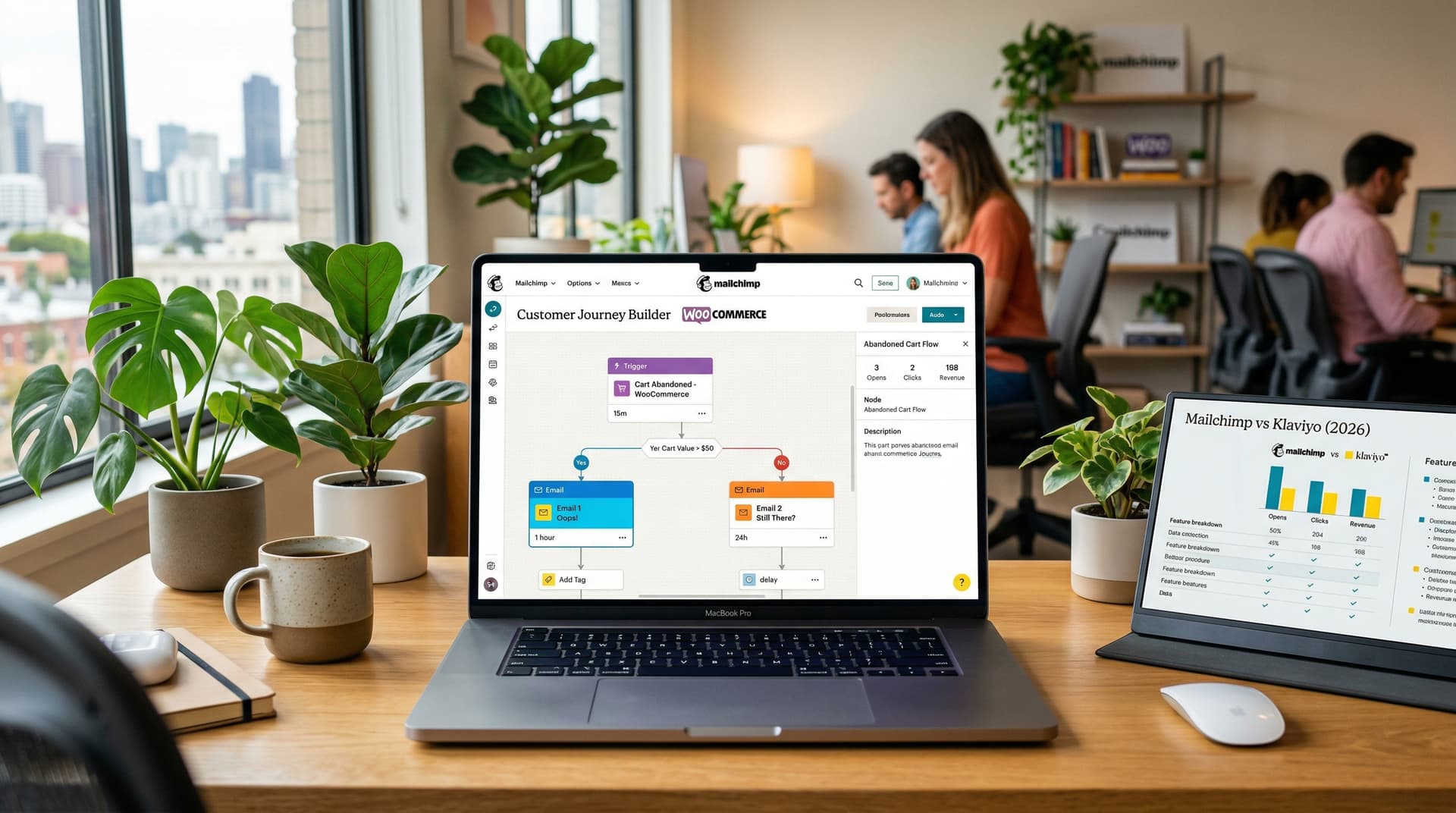
If you're already on Mailchimp and WooCommerce, you can have a working abandoned cart flow running today. Here's exactly how, including the parts Mailchimp's docs don't explain well.
The short version
- Mailchimp supports abandoned cart email automation for WooCommerce through the free "Mailchimp for WooCommerce" plugin. The plugin syncs your store data. Mailchimp handles the automation.
- You need the Standard plan ($20/mo for 500 contacts) to access the Customer Journey Builder with proper abandoned cart automation. The Essentials plan ($13/mo) has a basic single-email version. The free plan is too limited for real cart recovery.
- Setup takes 15-30 minutes: install plugin, connect your store, build the automation in Mailchimp's Customer Journey Builder.
- The most common problem: "Mailchimp abandoned cart not working." Usually caused by caching conflicts, JavaScript not loading on checkout, or the automation connected to the wrong store. All fixable.
- Mailchimp handles a basic three-email cart recovery sequence reasonably well. Where it falls short: conditional splits by cart value, A/B testing within automations, and browse abandonment triggers. If you need those, Klaviyo or Omnisend is the better choice.
- For WooCommerce stores already paying for Mailchimp, using Mailchimp for cart recovery makes more sense than adding a separate plugin. One system, one customer profile, one dashboard.
According to Mailchimp (2025), the platform has over 13 million active users. According to BuiltWith (2026), WooCommerce powers 36% of ecommerce sites. The overlap between these two is massive -- and underserved. Most abandoned cart guides assume you're on Klaviyo or Shopify. If you're running a WooCommerce store with Mailchimp as your email platform, the available guidance is thinner than it should be.
This guide fills that gap. We walk through the entire setup from plugin installation to a working three-email abandoned cart sequence, cover which Mailchimp plan you actually need, troubleshoot the issues that break cart tracking (there are several), and compare Mailchimp to the alternatives for stores that might be outgrowing it.
If you're evaluating whether to use Mailchimp or a WooCommerce-native plugin for cart recovery, our WooCommerce abandoned cart guide covers the plugin options. If you're on Shopify, the Klaviyo setup guide is your resource.
This post is part of our Abandoned Cart Email Ultimate Guide series.
Mailchimp's abandoned cart email automation for WooCommerce uses the Mailchimp for WooCommerce plugin to sync cart events, then triggers a Customer Journey workflow when a cart is abandoned. You need at minimum a Standard plan ($20/mo) to access the abandoned cart automation feature.
How do I set up abandoned cart emails in Mailchimp?
Install the Mailchimp for WooCommerce plugin, connect your store through the plugin's setup wizard, then create a Customer Journey in Mailchimp with the "Abandoned cart" trigger. Design your email template using the dynamic product content block, set your preferred timing delay (one hour works best for email one), and activate the journey.
Which Mailchimp plan do you need?
This is the first question to answer because it determines whether Mailchimp can actually do what you need.
| Plan | Price (500 contacts) | Abandoned cart email | Customer Journey Builder | Conditional logic | A/B testing |
|---|---|---|---|---|---|
| Free | $0 | Single email only | No | No | No |
| Essentials | $13/mo | Single email | Basic journeys | No | Subject line only |
| Standard | $20/mo | Multi-email sequence | Full journeys | Limited | Yes |
| Premium | $350/mo | Multi-email sequence | Advanced journeys | Yes | Yes |
The recommendation: Standard plan. It's the minimum tier that lets you build a proper multi-email abandoned cart sequence through the Customer Journey Builder with multiple touchpoints, time delays, and basic branching. The $20/month starting price is reasonable, and ecommerce businesses typically recover the cost within the first month from recovered carts alone.
The free plan has an abandoned cart email, but it's a single automated email with minimal customization. You can't build a sequence. You can't add conditional logic. For testing the concept, it works. For actual cart recovery, it's insufficient.
Essentials adds basic Customer Journeys but the automation options are still limited. If you're on Essentials and it's working for your other email needs, the $7/month jump to Standard is worth it for the abandoned cart automation alone.
Step 1: Install and connect Mailchimp for WooCommerce
Install the plugin
WordPress admin > Plugins > Add New > search "Mailchimp for WooCommerce" > Install > Activate.
This is Mailchimp's official plugin. It's free and handles the data sync between your WooCommerce store and your Mailchimp account. Without it, Mailchimp has no visibility into your cart data.
Connect your store
After activation, you'll see a setup wizard:
- Log into your Mailchimp account through the plugin
- Select which Mailchimp audience (list) to connect to your store
- Choose sync settings: customer data, order history, product catalog
- Enable cart tracking (this is the setting that makes abandoned cart emails possible)
- Complete the initial sync
The initial sync can take anywhere from a few minutes to several hours, depending on the size of your product catalog and order history. Don't start building automations until the sync completes. Mailchimp needs your product data to populate dynamic content blocks in the cart email.
Verify the connection
Go to Mailchimp > Integrations > check that your WooCommerce store appears as connected. In the Mailchimp for WooCommerce plugin settings in WordPress, check the "Store" tab to confirm sync status. You should see your product count, customer count, and order count matching (approximately) what's in your WooCommerce dashboard.
If the sync shows 0 products or 0 customers, something went wrong. Common cause: a plugin conflict interrupted the sync. Try disconnecting and reconnecting, or deactivate other plugins temporarily and re-sync.
Step 2: Build the abandoned cart automation
Using the Customer Journey Builder (Standard plan and above)
Go to Mailchimp > Automations > Customer Journeys > Create Journey.
Starting point: Select "Abandons cart" as the trigger. This fires when a known customer adds items to their cart and doesn't complete the purchase within a set time window (typically 1-6 hours, configurable).
Note: "known customer" means someone whose email address Mailchimp can identify -- either they're logged into their WooCommerce account, they've clicked through from a previous Mailchimp email, or the Mailchimp tracking cookie has matched them from a prior visit.
Email 1: Cart reminder
Time delay: 1 hour after abandonment.
Mailchimp's default timing is often set higher. Change it. As we cover in our flow timing guide, the first hour is where conversion is highest. You can't go as low as 30 minutes in Mailchimp's Journey Builder (the minimum is usually 1 hour), which is a limitation compared to Klaviyo.
Template: Use Mailchimp's abandoned cart email template as a starting point. It automatically includes:
- Dynamic product block showing the carted items (image, name, price)
- A "Complete your purchase" CTA button linking back to the WooCommerce checkout
Customize the template:
- Add your brand logo (small, top of email)
- Write a subject line: "[Name], you left something in your cart" (use the
*|FNAME|*merge tag) - Keep the body copy short: "Looks like you left some items behind. Your cart is saved and ready when you are."
- Make sure the CTA button is prominent and links to the cart/checkout page
Don't add a discount to this email. Most recoveries from email 1 happen at full price.
Email 2: Social proof
Time delay: 24 hours after email 1.
Add a second journey point: "Send email" with a 24-hour delay.
Template: Same product block as email 1, plus:
- Subject line: "Still thinking about the [product]? Here's what customers say"
- Add 1-2 customer review quotes manually in the email body (Mailchimp doesn't dynamically pull reviews from WooCommerce like Klaviyo does from its review integrations)
- Mention your return policy or shipping speed
- CTA: "Return to your cart"
Email 3: Incentive
Time delay: 24-48 hours after email 2.
Add a third journey point with the appropriate delay.
Template:
- Subject line: "Free shipping on your cart -- today only"
- Cart contents
- Coupon code (create a WooCommerce coupon first, then include the code in the email. Mailchimp doesn't generate unique-per-recipient coupons natively like Klaviyo or AutomateWoo)
- Expiration notice: "This offer expires in 24 hours"
- CTA: "Claim your discount"
The shared coupon code is a limitation. Unlike Klaviyo (which generates unique codes per recipient), Mailchimp requires you to create a single coupon in WooCommerce and include it as text in the email. This means the code can be shared. To limit abuse, set a usage limit on the WooCommerce coupon (e.g., maximum 500 uses) and an expiration date.
Activate the journey
Once all three emails are built and reviewed, set the journey to "Active." New cart abandonment events will now trigger the sequence.
Step 3: Design your email templates
Mailchimp's email builder is visual and drag-and-drop, which is an advantage over WooCommerce-native plugins that use basic HTML editors. Some design tips specific to Mailchimp cart emails:
Use the Product content block. This dynamically pulls the abandoned product image, name, and price from your WooCommerce data. Don't manually add product information -- the dynamic block ensures the right products show for each customer.
Keep the layout single-column. Mailchimp's templates support multi-column layouts, but for cart recovery, single column works better on the 80% of your audience opening on mobile.
Brand your templates. Mailchimp lets you save brand colors, fonts, and logo in your account settings. Apply these to your cart email templates so they match your website. A cart email that looks nothing like your store creates a disconnect.
Preview on mobile. Mailchimp has a mobile preview toggle in the email builder. Use it. Check that the product image is large enough to recognize, the CTA button is tappable, and the text is readable without zooming.
Avoid Mailchimp's heavy footers. Mailchimp adds a default footer with their badge and links. On paid plans, you can remove the Mailchimp badge. Do it. Your cart recovery email should look like it comes from your store, not from an email platform.
Guest checkout tracking in Mailchimp
This is where Mailchimp falls behind Klaviyo and dedicated WooCommerce plugins.
Mailchimp for WooCommerce identifies customers primarily through:
- Logged-in WooCommerce accounts. If the customer is logged in, Mailchimp knows who they are.
- Mailchimp tracking cookie. If the customer previously clicked through from a Mailchimp email, the cookie identifies them on return visits.
- Email entered at checkout. If the customer starts typing their email on the checkout page, the plugin captures it via JavaScript (similar to how WooCommerce cart abandonment plugins work).
The gap: anonymous first-time visitors who arrive from Google, browse, add to cart, and leave without ever entering an email address. Mailchimp can't email people it can't identify. This is the same limitation most platforms face, but Mailchimp's cookie-based identification is less aggressive than Omnisend's (which uses broader cookie tracking) or Klaviyo's (which has deeper Shopify-level integration for event capture).
According to Mailchimp (2025), cart abandonment emails reach roughly 30–50% of actual cart abandoners depending on identification methods in place. The rest are anonymous visitors you can't contact via email. To increase this percentage:
- Encourage account creation (offer incentives for signing up before purchasing)
- Use email capture pop-ups (Mailchimp has built-in signup forms) to identify visitors before they add to cart
- Run email campaigns that drive traffic to your store (every click sets the Mailchimp cookie for future identification)
Troubleshooting: Mailchimp abandoned cart not working
This is such a common search query (10/mo at KD 0) that it deserves a thorough section. There are multiple GitHub issues on the Mailchimp for WooCommerce plugin about this exact problem, and the causes are specific and fixable.
Problem 1: Cart tracking JavaScript not loading
The Mailchimp for WooCommerce plugin adds a JavaScript file to your checkout page that captures cart data and sends it to Mailchimp. If this script doesn't load, abandoned carts are never reported to Mailchimp, and no emails fire.
Causes:
- Caching plugins serving a static version of the checkout page (the cached version doesn't include the dynamic JS)
- JavaScript minification plugins combining or rewriting the Mailchimp script
- Theme conflicts that prevent scripts from loading on specific pages
Fix: Exclude the checkout page from caching. In your caching plugin settings, add /checkout/ to the exclusion list. If you're using an optimization plugin that minifies JS, exclude Mailchimp's script from minification. Test by opening the checkout page, right-clicking > Inspect > Console tab -- if you see Mailchimp-related JavaScript errors, that's your culprit.
Problem 2: Store sync not connecting properly
Carts are abandoned but Mailchimp shows no abandoned cart data. The sync between WooCommerce and Mailchimp is broken or incomplete.
Fix: Go to the Mailchimp for WooCommerce plugin settings in WordPress. Check the "Store" tab. If the sync status shows errors, try: (1) Disconnect and reconnect the store. (2) Re-sync the store data. (3) Check that the WooCommerce REST API is enabled (WooCommerce > Settings > Advanced > REST API). Some security plugins disable the REST API, which breaks the Mailchimp sync.
Problem 3: Automation connected to wrong store
If you've connected multiple WooCommerce stores to Mailchimp (a staging site and a production site, for example), the abandoned cart automation might be linked to the wrong store. Cart events from one store won't trigger automations connected to another.
Fix: In Mailchimp, go to the automation's settings and verify it's connected to the correct store (your production/live store, not your staging or development site). This is a surprisingly common issue because developers often test the integration on a staging site and forget to switch the automation to the live store.
Problem 4: Product variant IDs missing
Mailchimp requires every product in the abandoned cart to have a valid product ID. If you're using variable products in WooCommerce (e.g., a t-shirt with size and color options), each variant combination needs to be generated as a product variant. If variants are missing, Mailchimp can't populate the cart data in the email, and the automation may fail silently.
Fix: Go to your WooCommerce products and ensure all variable products have their variants properly generated. For each variable product, check that the "Variations" tab has entries for each combination of attributes. Regenerate variants if necessary, then re-sync with Mailchimp.
Problem 5: Abandoned cart email going to spam
The emails are sending but customers never see them. This is a deliverability issue, not a tracking issue.
Fix: Mailchimp sends through its own infrastructure, so deliverability is generally better than sending from your WordPress server. But make sure: (1) Your sender domain is authenticated in Mailchimp (SPF, DKIM, DMARC). (2) Your sender email address matches your domain use @yourdomain.com, not a Gmail address). (3) You're not sending from a brand new domain with no email history -- Mailchimp's shared IP reputation helps, but a new domain still needs warm-up.
Mailchimp vs. Klaviyo for WooCommerce cart recovery
This is the comparison most WooCommerce store owners eventually face: stick with Mailchimp or move to Klaviyo?
| Feature | Mailchimp (Standard) | Klaviyo |
|---|---|---|
| Price (500 contacts) | $20/mo | $20/mo |
| Price (5,000 contacts) | $70/mo | $100/mo |
| Price (10,000 contacts) | $150/mo | $150/mo |
| Abandoned cart automation | Yes (Customer Journey Builder) | Yes (Flow Builder) |
| Conditional splits by cart value | No (Standard), Limited (Premium) | Yes |
| Browse abandonment | Not natively supported | Yes |
| SMS in same flow | No | Yes |
| Dynamic review blocks | No (manual only) | Yes (Yotpo, Judge.me, Stamped integration) |
| A/B testing in automations | Limited | Full |
| Unique coupon per recipient | No | Yes |
| WooCommerce integration quality | Good (official plugin) | Good (official plugin) |
| Ease of use | Higher | Lower (steeper learning curve) |
| Email design builder | Better | Slightly less polished |
When to stay on Mailchimp:
- You're under 5,000 contacts and Mailchimp is cheaper
- Your email program is simple: cart recovery, welcome series, occasional campaigns
- You don't need browse abandonment or advanced conditional logic
- Your team prefers Mailchimp's simpler interface
- You're already invested in Mailchimp's ecosystem (landing pages, social ads, audience tools)
When to move to Klaviyo:
- You need conditional splits by cart value, customer type, or product category
- Browse abandonment is a priority (Mailchimp doesn't support this trigger natively)
- You want SMS and email in the same automation flow
- You need dynamic review blocks that pull from your review platform
- You're scaling past 10,000 contacts and need more advanced segmentation
- You want unique coupon codes per recipient to prevent sharing
For most WooCommerce stores under $500K in annual revenue with simple email needs, Mailchimp is adequate and easier to manage. For stores pushing past that or with more sophisticated lifecycle marketing needs, the migration to Klaviyo usually pays for itself through higher recovery rates.
Mailchimp vs. WooCommerce native plugins
The other comparison: should you use Mailchimp or a WooCommerce plugin (AutomateWoo, Cart Abandonment Recovery) for cart recovery?
| Factor | Mailchimp | WooCommerce plugin |
|---|---|---|
| Cost | $20+/mo (Standard) | Free - $119/year |
| Email design | Visual drag-and-drop | Basic HTML editor (most plugins) |
| Cart recovery automation | Yes | Yes |
| Campaign emails beyond cart recovery | Yes | No (cart only) |
| Welcome series, post-purchase, winback | Yes | AutomateWoo: yes. Free plugins: no. |
| Customer profile / CRM | Yes | No |
| Analytics and reporting | Good | Basic |
| Data stays on your server | No (SaaS) | AutomateWoo: yes. Retainful: no. |
Use Mailchimp if: You need an email marketing platform and cart recovery is one of many things you're doing. Mailchimp gives you campaigns, automations, audience management, and analytics in one place.
Use a plugin if: Cart recovery is the only automation you need and you're not sending campaigns or newsletters. A free plugin with WP Mail SMTP for deliverability costs nothing and handles basic cart recovery well.
Don't use both. Running Mailchimp for campaigns and a WooCommerce plugin for cart recovery creates data silos, potential email duplication, and makes it harder to manage suppression across systems. Pick one approach and commit to it.
Performance benchmarks
Mailchimp publishes limited cart recovery benchmarks compared to Klaviyo, but from available data and industry comparisons:
| Metric | Mailchimp cart emails | Industry average |
|---|---|---|
| Open rate | 40-50% | 40-50% |
| Click rate | 3-5% | 5-8% |
| Recovery rate (single email, free plan) | 2-4% | 3-5% (single email) |
| Recovery rate (3-email sequence, Standard) | 5-10% | 5-15% |
Mailchimp's click rates tend to run slightly lower than Klaviyo's because Mailchimp lacks some of the dynamic personalization features (product reviews, unique coupons, conditional content) that lift click-through rates on other platforms. The open rates are comparable because those depend primarily on subject line and sender reputation, which are platform-independent.
If you're on Mailchimp Standard with a properly configured three-email sequence and your recovery rate is below 3%, check: (1) timing of email 1 (should be 1 hour, not the next day), (2) email deliverability (authenticated domain, consistent sender), (3) guest tracking (is the JavaScript loading on checkout?), (4) whether the automation is actually active and connected to the right store.
Outgrowing Mailchimp's single-email cart recovery? Geysera manages multi-step abandonment flows in Klaviyo — with conditional logic, A/B testing, and incremental revenue measurement built in. See how it works →
Frequently asked questions
Can I use Mailchimp's free plan for abandoned cart emails?
Technically yes -- the free plan includes a basic single abandoned cart email. But the free plan is limited to 250 contacts and 500 emails per month, and you can't build a multi-email sequence. For real cart recovery, you need at least the Standard plan ($20/mo).
Why isn't my Mailchimp abandoned cart email sending?
The five most common causes: (1) Caching plugin blocking checkout JavaScript. (2) Store sync disconnected or broken. (3) Automation connected to wrong store (staging vs. production). (4) Product variants not generated for variable products. (5) Automation in draft/paused status. Check each one in order. The troubleshooting section above has specific fixes for each.
Can Mailchimp track guest abandoned carts on WooCommerce?
Partially. Mailchimp identifies customers through account login, Mailchimp cookies (from previous email clicks), and email capture at checkout. Anonymous first-time visitors who never enter an email address can't be tracked. This limits Mailchimp's reach to roughly 30-50% of actual cart abandoners.
Should I use Mailchimp or Klaviyo for my WooCommerce store?
Mailchimp if you're under 5,000 contacts, have simple automation needs, and prefer an easier interface. Klaviyo if you need conditional splits, browse abandonment, SMS integration, or dynamic review blocks. At similar price points (both start around $20/mo for 500 contacts), the decision comes down to features vs. simplicity.
Can I add SMS to my Mailchimp cart recovery flow?
Not natively within the same automation. Mailchimp has SMS marketing as a feature, but it's not integrated into Customer Journeys the way Klaviyo or Omnisend combine email and SMS in a single flow. You'd need to run SMS as a separate automation or use a third-party SMS tool alongside Mailchimp.
How do I create unique coupon codes per recipient in Mailchimp?
You can't, natively. Mailchimp doesn't generate unique coupons like Klaviyo does. You create a single WooCommerce coupon code and include it as text in the email. To limit abuse, set a usage limit and expiration date on the WooCommerce coupon. If unique codes are important to your strategy, this is a reason to consider Klaviyo.
Back to the pillar: Abandoned Cart Email: The Ultimate Guide
This is the final post in the series. See the full series index for all 13 posts.
Sources
- Mailchimp: Create an Abandoned Cart Customer Journey
- Mailchimp for WooCommerce Plugin Documentation
- Mailchimp Pricing Plans 2026
- Mailchimp for WordPress: Debugging Abandoned Cart
- GitHub: Mailchimp/mc-woocommerce Issues (#213, #767, #463)
- Mailchimp WooCommerce Integration Page
- AeroLeads Mailchimp Pricing Breakdown 2026
- Benchmarkemail Mailchimp Pricing Analysis 2026
- Mailchimp About Page
- BuiltWith WooCommerce Usage Statistics
- Mailchimp Email Marketing Benchmarks
Related reading from the WooCommerce email series
- The Modern Ecommerce Email Stack: Why Two Tools Beat One in 2026 — Why even WooCommerce stores already on Mailchimp benefit from adding a dedicated automation layer for cart, browse, and post-purchase flows, instead of asking the ESP to do orchestration too.

Co-Founder and CEO
Bob Thordarson is CEO and Co-Founder of Geysera, a serial entrepreneur with 25+ years and five co-founded ventures, including Cequint (acquired by TNS in 2010 for $112.5M) and Consumerware (acquired by ParkerVision). A graduate of the University of Washington and MIT Entrepreneurial Masters Program, based in Seattle, he serves on the boards of DRY Soda Co. and the Entrepreneurs' Organization Seattle chapter. He is an expert in retention marketing email systems and methodology for ecommerce and B2B brands — measured by incremental revenue, not vanity metrics.