How to Build a Browse Abandonment Flow in Klaviyo: The Complete Technical Setup Guide
Build a browse abandonment flow that actually works. The complete Klaviyo setup guide — triggers, flow filters, dynamic blocks, and the mistakes most brands make.
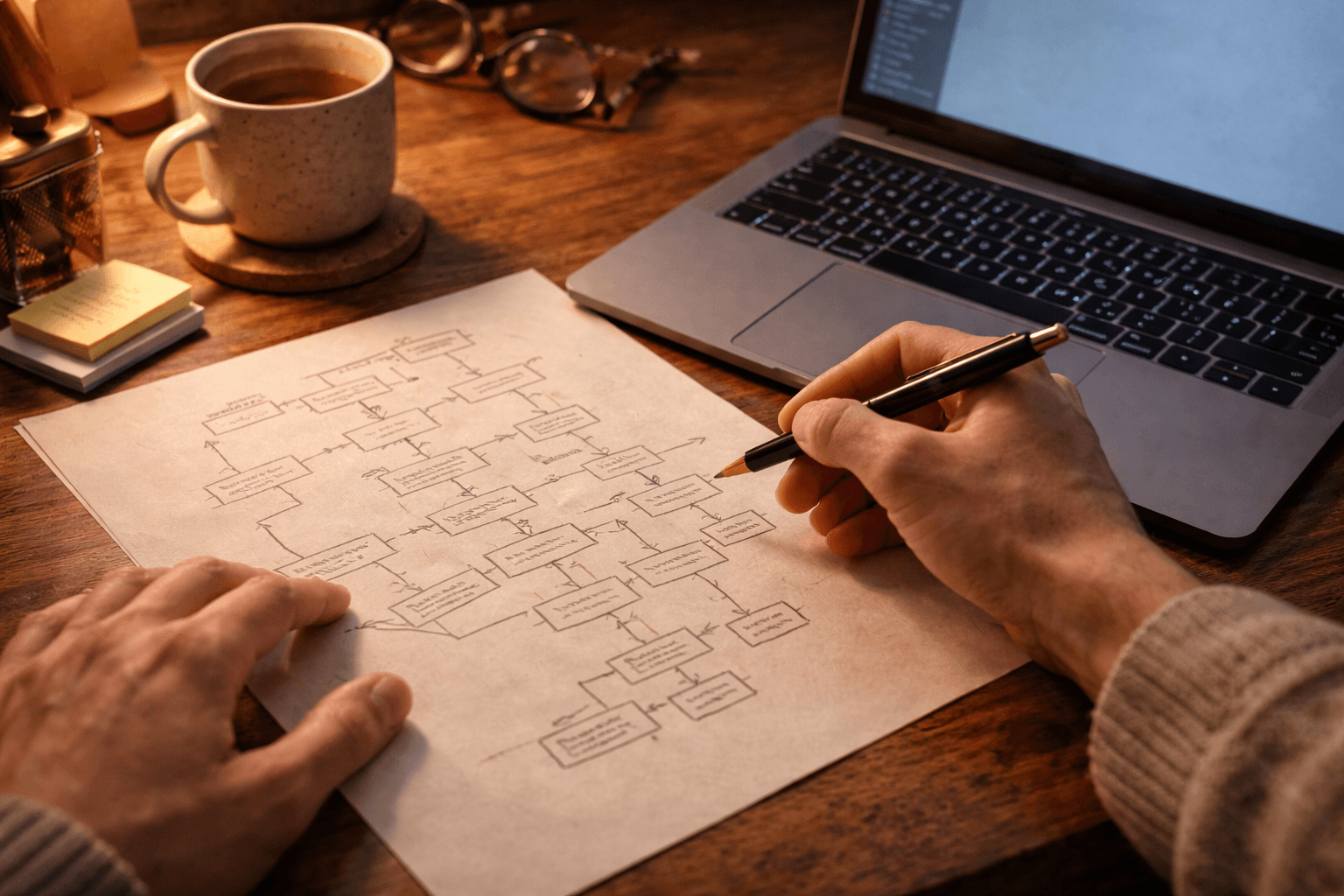
Most setup guides tell you what buttons to click. This one tells you why each decision matters — and what breaks when you get it wrong.
Part 3 of 7 in the Browse Abandonment Email Series. Previous: Segmentation ← | Next: Copywriting →
There is a version of this chapter that would just walk you through Klaviyo's UI, step by step, and call it a day.
That version would be incomplete.
The brands that build browse abandonment flows and then wonder why they're underperforming usually made a handful of specific technical mistakes — not because they didn't follow a setup guide, but because the setup guide they followed explained what to do without explaining why. So when something didn't work, or when their situation was slightly different from the template, they didn't have the conceptual foundation to diagnose the problem.
This chapter fixes that.
We'll cover the full technical architecture of a browse abandonment flow in Klaviyo — the trigger, the event data, the flow filters, the dynamic product blocks, the audience splits, and the SMS coordination layer. More importantly, we'll cover the reasoning behind each decision so that when you're sitting in your account and something looks different from what's described here, you know what question to ask.
The goal is not just a flow that's set up. It's a flow you understand well enough to optimize, troubleshoot, and improve over time.
That's the standard Chase Dimond sets for every automated flow he builds for clients: not set it and forget it. Build it, understand it, then test and optimize it. The brands generating 20 to 30 percent of their revenue from email are not doing so because they set up flows once. They're doing it because they treat flows as living systems that require ongoing attention.
Step 1: Before You Build Anything — Resolve the Identifiability Problem
The single most important thing to understand about browse abandonment before you touch Klaviyo is this: the Viewed Product event only fires for subscribers Klaviyo can identify.
That sounds obvious until you understand what "identify" actually means in practice.
Klaviyo's default Shopify integration fires the Viewed Product event using a client-side JavaScript snippet — the Klaviyo App Embed. This snippet triggers when someone views a product page, but it can only associate that view with a Klaviyo profile if the visitor is already cookied in that browser from a previous Klaviyo email click, or if they submit a form (like your opt-in popup) during the same session.
Here's the implication. A subscriber who has been on your list for six months opens their laptop, goes directly to your website, browses three products, and leaves — Klaviyo may not fire a Viewed Product event for any of those views, because the subscriber isn't cookied in that browser session.
The result: a large proportion of your list's browse activity is invisible to your flow, and your browse abandonment audience is significantly smaller than it could be.
The Server-Side Solution
Server-side tracking tools — Littledata is the most widely used Shopify integration for this purpose — address the problem by capturing the Viewed Product event at the server level rather than in the browser. A server-side event fires regardless of browser cookie state, capturing browse activity for a substantially larger proportion of your returning subscribers.
Will Evans, who has spent a decade helping ecommerce brands optimize their Klaviyo infrastructure through FlowCandy, describes server-side event tracking as one of the highest-ROI technical investments a DTC brand can make for their lifecycle marketing program. The browse abandonment flow is often the primary beneficiary.
The practical impact varies by brand, but expanding your identifiable browse audience by 20 to 40 percent is common. At scale, that is a meaningful revenue difference for a flow that was already running.
If you're on Shopify and browse abandonment is a priority, evaluate server-side tracking before spending significant time optimizing email copy. More audience first, then better emails.
If server-side tracking isn't in your immediate budget, proceed with the standard Klaviyo Viewed Product event — it still captures a meaningful segment of your most engaged subscribers, particularly those who regularly click through from your emails. It's a starting point, not a ceiling.
Step 2: Confirm Your Viewed Product Event Is Passing the Right Data
Your browse abandonment email's dynamic product block — the section that displays the specific product the subscriber was looking at — is only as good as the data attached to the Viewed Product event.
Before building the flow, check that the following properties are passing correctly through every Viewed Product event in your Klaviyo account:
**ImageURL**— the product image that will display in the email. Verify it's a full-resolution URL, not a thumbnail.**ProductName**— the product's name as it should appear in email copy**Price**— the current price, formatted correctly (with currency symbol if needed)**ProductURL**— the link that the CTA button will point to. Verify it resolves to the correct product page, not a 404.**Categories**(optional but useful) — product category data that can drive conditional logic for related product recommendations
To verify, go to your Klaviyo account → Analytics → Metrics → Viewed Product → Activity Feed. Click into a recent event and inspect the properties. If any of the above are missing or malformed, resolve the integration issue before building the flow — a beautiful email template connected to broken event data is useless.
Step 3: Create the Flow
In Klaviyo, navigate to Flows → Create Flow. You can start from a pre-built browse abandonment template (Klaviyo offers several, including Shopify-specific variants) or build from scratch.
Starting from a template is generally recommended for one specific reason: the dynamic product block configuration for browse abandonment is subtly different from cart abandonment, and the templates have this pre-configured correctly. Building from scratch introduces the risk of copying a cart abandonment template's block settings — a common mistake that breaks image rendering in browse flows.
More on that in Step 6.
Setting the Trigger
The flow trigger is the Viewed Product metric. Set it to fire when Klaviyo receives this event.
If you're using a server-side tracking tool like Littledata, your trigger event will be named differently — typically Viewed Product – Littledata or a similar variant. Use the correct event name for your setup. Mixing client-side and server-side events in the same flow creates duplicate sends.
Step 4: Configure Your Flow Filters
This is where most browse abandonment flows fail silently.
Flow filters are conditions that Klaviyo checks at every step of the flow, for every subscriber, every time they're about to receive an email. If a subscriber no longer meets the filter conditions at any point — because they added to cart, started checkout, or placed an order — they are immediately removed from the flow and will not receive any further emails in the sequence.
This is fundamentally different from a conditional split, which only checks conditions once, at the moment the subscriber reaches that point in the flow. A conditional split set at the beginning of the flow will not catch a subscriber who converts halfway through.
Set these four filters at the flow level, not at individual email steps:
- Added to Cart: zero times since starting this flow Removes subscribers who upgrade to cart abandonment territory mid-flow. They should now be in your abandoned cart email flow, not your browse flow.
- Started Checkout: zero times since starting this flow Same logic, applied to the checkout stage. Even higher priority exit condition.
- Placed Order: zero times since starting this flow The most important filter. Anyone who purchases while in the browse flow should stop receiving browse emails immediately. Sending a "did you forget something?" email to someone who just bought is both a bad customer experience and a waste of send volume.
- Has received email from this flow: zero times in the last X days This is your re-entry throttle. Set X to 5–7 days for most product categories; 7–14 days for high-consideration or high-ticket products. Without this filter, a subscriber who views 10 products in a week can be entered into the flow 10 times, generating up to 20–30 emails. This filter is what prevents your most engaged browsers from becoming your most annoyed unsubscribers.
To set flow filters in Klaviyo: open the flow → click the trigger block → select Flow Filters → add each condition above.
Step 5: Set Smart Sending and Initial Time Delay
Smart Sending: On. Always, for browse abandonment. Smart Sending prevents a subscriber from receiving more than one message from any flow within a set window — Klaviyo's default is 16 hours, which you can adjust. For a high-frequency browser, this is the guardrail that keeps your flow from feeling like harassment.
Initial time delay: Place a time delay block immediately after the trigger, before Email 1.
Set this delay to 1–2 hours for most product categories. The rationale from Part 2 applies: long enough to feel considered and not surveillance-like, short enough to reach the subscriber while the product is still top of mind.
Adjust based on your product's consideration cycle:
- Impulse / low-ticket (candles, accessories, small consumables): 1 hour
- Mid-consideration / mid-ticket (apparel, beauty, supplements): 2 hours
- High-consideration / high-ticket (furniture, electronics, fine jewelry): 4–8 hours
This is one of the highest-value variables to A/B test once your flow is live. Two hours vs. four hours on RPR can produce surprising results depending on your vertical.
Step 6: Build the Dynamic Product Block — The Detail Most Guides Miss
This is the most technically consequential step in the entire build, and the one most frequently misconfigured.
In Klaviyo's email editor, when you add a product block to a browse abandonment email, you need to configure it as a Static content block — not a Dynamic block.
This is counterintuitive. "Dynamic" sounds like what you want — content that changes based on the subscriber's behavior. And for cart abandonment, Dynamic is correct: it loops through all the items in the subscriber's cart and displays each one.
Browse abandonment works differently. The flow only surfaces the most recently viewed product — it does not loop through multiple products. Configuring the block as Dynamic in this context causes the image and product data to fail to render correctly. The email sends but the product block appears broken.
Set the product content block to Static. Then manually configure the following dynamic variables within that static block:
To display the product image:
Add an Image block → Select Dynamic Image → In the "Dynamic variable" field, enter:
{{ event.ImageURL }}
To display the product name:
Add a Text block and enter:
{{ event.ProductName }}
To display the price:
{{ event.Price }}
To set the CTA button URL:
In the button's link field, enter:
{{ event.ProductURL }}
To display the category (for logic or copy):
{{ event.Categories }}
Before activating the flow, send yourself a test using a real Viewed Product event from your account's activity feed. In Klaviyo, you can do this by going to the flow → clicking the email block → Preview → select a profile that has a recent Viewed Product event. Verify that the product image, name, price, and URL all populate correctly.
If any field is blank, trace it back to the event data check in Step 2. The problem is upstream, not in the email template.
Step 7: Build the Audience Splits
With the foundation in place — trigger, flow filters, Smart Sending, time delay, and dynamic product block — you now layer in the audience splits from Part 2's segmentation framework.
Split A: Purchaser vs. Non-Purchaser
Immediately after Email 1 in the flow (or before it, if you want to differentiate Email 1 by purchase history), add a Conditional Split on:
**Person > Properties > Placed Order > at least 1 time > over all time**
- YES path → Purchaser sequence (one-time buyer or loyal buyer sub-split)
- NO path → First-time buyer sequence
Split B: One-Time Buyer vs. Loyal Buyer (within the YES path)
Add a second conditional split within the purchaser path:
**Person > Properties > Placed Order > at least 2 times > over all time**
- YES path (2+ orders) → Loyal buyer email: one email, brief, low-pressure
- NO path (exactly 1 order) → One-time buyer email: product reminder with brand confidence signals
Split C: High-Intent Browser (optional, high-value)
Within the non-purchaser path, add a split to catch subscribers who have viewed the product multiple times:
**What someone has done > Viewed Product > at least 3 times > since starting this flow**
- YES path → High-intent browser sequence: escalate to objection-handling copy in Email 2; introduce a real incentive in Email 3 if applicable
- NO path → Standard first-time browser sequence
Split D: SMS Coordination (if applicable)
If your account has SMS capability and subscribers with SMS consent, add a split after Email 1's time delay:
**Person > Properties > SMS Consent > Is > Subscribed**
- YES path → Add an SMS message as a follow-up to Email 1 (sent 24+ hours after the email, using a brief, conversational message that references the browsed product)
- NO path → Continue to Email 2
Jimmy Kim, CEO of Sendlane and a veteran of 15+ years building SaaS marketing platforms, describes email and SMS in browse abandonment as different instruments in the same conversation — not duplicate messages, but complementary formats. Email carries the product image, the copy depth, the visual brand experience. SMS adds immediacy and feels personal. Use them as a sequence, not a simultaneous blast.
Step 8: The Full Email Sequence by Segment
Here is how each path should be populated, based on the timing framework from Part 2.
Non-Purchaser Path (First-Time Browser)
Email 1 — Warm reminder, product showcase, brand credibility signals
Send: 1–2 hours after browse session
Time delay — 24 hours
Email 2 — Education or social proof; address the most likely pre-purchase objection for the product category
Send: ~26 hours after browse session
Time delay — 24 hours
Email 3 (optional) — Soft first-purchase incentive; time-bounded and genuine
Send: ~50 hours after browse session
One-Time Buyer Path
Email 1 — Product reminder with brand confidence; inspiration-led, not urgency-led
Send: 1–2 hours after browse session
Time delay — 24–48 hours
Email 2 — Related product recommendations; category expansion
Send: ~26–50 hours after browse session
Loyal Buyer Path (2+ purchases)
Email 1 — One email only. Brief, warm, low-pressure. VIP-tone framing if brand-appropriate.
Send: 2–4 hours after browse session (slightly later delay — these subscribers don't need to be caught immediately)
High-Intent Browser Path (3+ product views)
Email 1 — Product reminder with product-specific social proof (review that addresses the most likely concern)
Send: 1–2 hours
Time delay — 24 hours
Email 2 — Direct objection handling; preempt the specific hesitation; real urgency if stock is genuinely low
Send: ~26 hours
Time delay — 24–48 hours
Email 3 (optional) — Genuine time-bounded incentive; "last note" framing
Send: ~50–74 hours
Step 9: The Related Products Section
Most browse abandonment emails include a section below the primary product block showing related or recommended products. This is good practice — it hedges against the specific product not converting while keeping the subscriber engaged with your catalog.
The challenge is doing it well in Klaviyo without manual curation for every possible browsed product.
Option A: Manual curation by category
Build a conditional split in the email template based on event.Categories. For each major product category, configure a different set of static product recommendations. Highest quality but most maintenance-intensive.
Option B: Klaviyo's product recommendation block
Klaviyo's native product recommendation feature uses purchase and browse history to auto-populate related products. It requires sufficient data to work well (ideally 1,000+ purchase events in your catalog). Set the recommendation logic to "related to viewed product" for browse abandonment.
Option C: Bestsellers by category
Use Klaviyo's catalog integration to dynamically pull top-selling products from the same category as the browsed product. Less personalized than purchase-history recommendations but more relevant than global bestsellers.
Limit recommendations to three or four products. More than four creates choice paralysis and visually clutters the email — both of which reduce click-through rates.
Step 10: Activate, Monitor, and Set Your Audit Cadence
Before activating the flow, run through this pre-launch checklist:
- Trigger event confirmed and passing correct property data
- Flow filters set at flow level (not just conditional splits)
- Smart Sending is on
- Initial time delay is set
- Re-entry throttle filter is in place
- Dynamic product block is configured as Static with correct variable tags
- Product image, name, price, and URL are rendering correctly in test send
- Purchaser/non-purchaser split is correctly reading Placed Order history
- All flow emails have an unsubscribe link (mandatory and non-negotiable)
- Suppression for recent purchasers is in place
- SMS split is correctly checking consent status
Once live, set a monitoring cadence. For the first two weeks, check daily: are emails sending? Are the dynamic product blocks populating? Are conversion events being attributed? After the initial two-week window, move to weekly monitoring, then settle into a quarterly audit rhythm.
The quarterly audit should check:
- Conversion rate trend — is it stable, improving, or declining? A declining trend often signals deliverability issues, audience fatigue, or a product catalog change that broke dynamic variables.
- Dynamic block integrity — product images and URLs change. A product that's been updated or discontinued may cause broken links or images in the flow. Check that high-volume Viewed Product SKUs are still resolving correctly.
- Flow filter logic — verify that the suppression conditions are still functioning as intended. Klaviyo occasionally updates its metric and filter UI; what worked six months ago should be confirmed still working.
- Segment performance — are the purchaser/non-purchaser paths performing differently? Use this data to refine copy, timing, and offer strategy in each branch.
This is what Chase Dimond means when he says these flows are not set-it-and-forget-it. The automation handles the sending. The optimization — the thing that turns a functional flow into a high-performing one — requires human attention on a regular cadence.
The Andzen Principle: Architecture as Strategy
Brenden Rawson, founder and CEO of Andzen — a lifecycle marketing agency with teams across Australia, North America, and Europe, and a seat on Klaviyo's Partner Advisory Council — has spent over a decade shaping how DTC brands think about lifecycle flow architecture.
His perspective is worth internalizing as a closing frame for this chapter: the flow architecture is not a technical afterthought that follows the creative. It is the strategy made executable. Every decision in the flow — when emails send, who receives them, what conditions remove someone from the sequence — is a statement about how your brand understands its customers and what it believes about how relationships are built.
A browse abandonment flow built with genuine segmentation logic, proper suppression rules, and a real understanding of the audience moving through it is not just better-performing than a single undifferentiated email. It is a different kind of conversation. One that feels considered rather than automated, even when it's fully automated.
The subscribers moving through your flow don't see the flow diagram. They experience the emails. The architecture determines whether that experience feels like a brand that understands them or a platform that tracks them.
Build accordingly.
What Comes Next
With the technical foundation in place, the next chapter turns entirely to the creative: how to write browse abandonment emails that actually get opened, read, and acted on. Subject lines, copy frameworks, psychological states to write to, and the specific expert methodologies — from Joanna Wiebe's VOC research approach to Laura Belgray's personality-first philosophy to Jay Schwedelson's data-backed subject line tactics — that separate browse abandonment copy that converts from copy that just exists.
The flow you've built in this chapter is the delivery system. The next chapter is what goes inside it.
This post is Part 3 of The Ultimate Guide to Browse Abandonment Emails — a multi-part series synthesizing the frameworks, tactics, and philosophies of 25 of the world's top retention email marketing experts, published on Geysera.com.
Read the complete series:
Part 1: Browse Abandonment Strategy & Philosophy — What It Is and Why It Matters
Part 2: Segmentation & Trigger Architecture — Who Gets This Email, When, and Why
Part 3: Technical Setup — How to Build the Flow in Klaviyo (you are here)
Part 4: Copywriting — The Words That Turn Window Shoppers Into Buyers
Part 5: Design & UX — The Visual Experience That Gets Clicks
Part 6: Discount Debate - When to Offer an Incentive
Part 7: Testing, Analytics & Optimization — How to Improve What's Already Running
Related reading:
Frequently asked questions
What trigger should I use for browse abandonment in Klaviyo?
The "Viewed Product" metric. This fires when an identified subscriber views a product page. Do not use "Active on Site" — that is too broad and will trigger on homepage visits, collection pages, and blog readers. You want product-level specificity.
Why is my browse abandonment flow not triggering?
The most common reason: the visitor is not an identified Klaviyo profile. Klaviyo can only fire browse abandonment emails for contacts it can match to an email address. If someone visits your site without being cookied as a known subscriber, the Viewed Product event fires but there is no profile to route it to. Check your active-on-site tracking and make sure your signup forms are creating Klaviyo profiles before visitors browse.
How do I prevent browse and cart abandonment emails from overlapping?
Add a flow filter: "Has Not Started Checkout since starting this flow." If someone views a product, then adds it to cart, the browse abandonment flow should stop and let the cart abandonment flow take over. Without this filter, a customer can receive both a "still browsing?" email and a "you left something in your cart" email about the same product within hours of each other.
Should I include SMS in my browse abandonment flow?
Only if the customer has given SMS consent and you have a clear channel coordination strategy. A browse abandonment text that arrives 30 minutes after a browse abandonment email about the same product feels aggressive. If you use both, stagger them — email first, SMS 24+ hours later as a second touch, not a simultaneous blast.
How many emails should be in a Klaviyo browse abandonment flow?
Start with two. Email 1 at 1-2 hours (product reminder with social proof). Email 2 at 24 hours (different angle — reviews, alternatives, or gentle urgency). Add a third only if your data shows incremental revenue from the third send. Many brands find the third email produces diminishing returns and higher unsubscribe rates.

Co-Founder and CEO
Bob Thordarson is CEO and Co-Founder of Geysera, a serial entrepreneur with 25+ years and five co-founded ventures, including Cequint (acquired by TNS in 2010 for $112.5M) and Consumerware (acquired by ParkerVision). A graduate of the University of Washington and MIT Entrepreneurial Masters Program, based in Seattle, he serves on the boards of DRY Soda Co. and the Entrepreneurs' Organization Seattle chapter. He is an expert in retention marketing email systems and methodology for ecommerce and B2B brands — measured by incremental revenue, not vanity metrics.